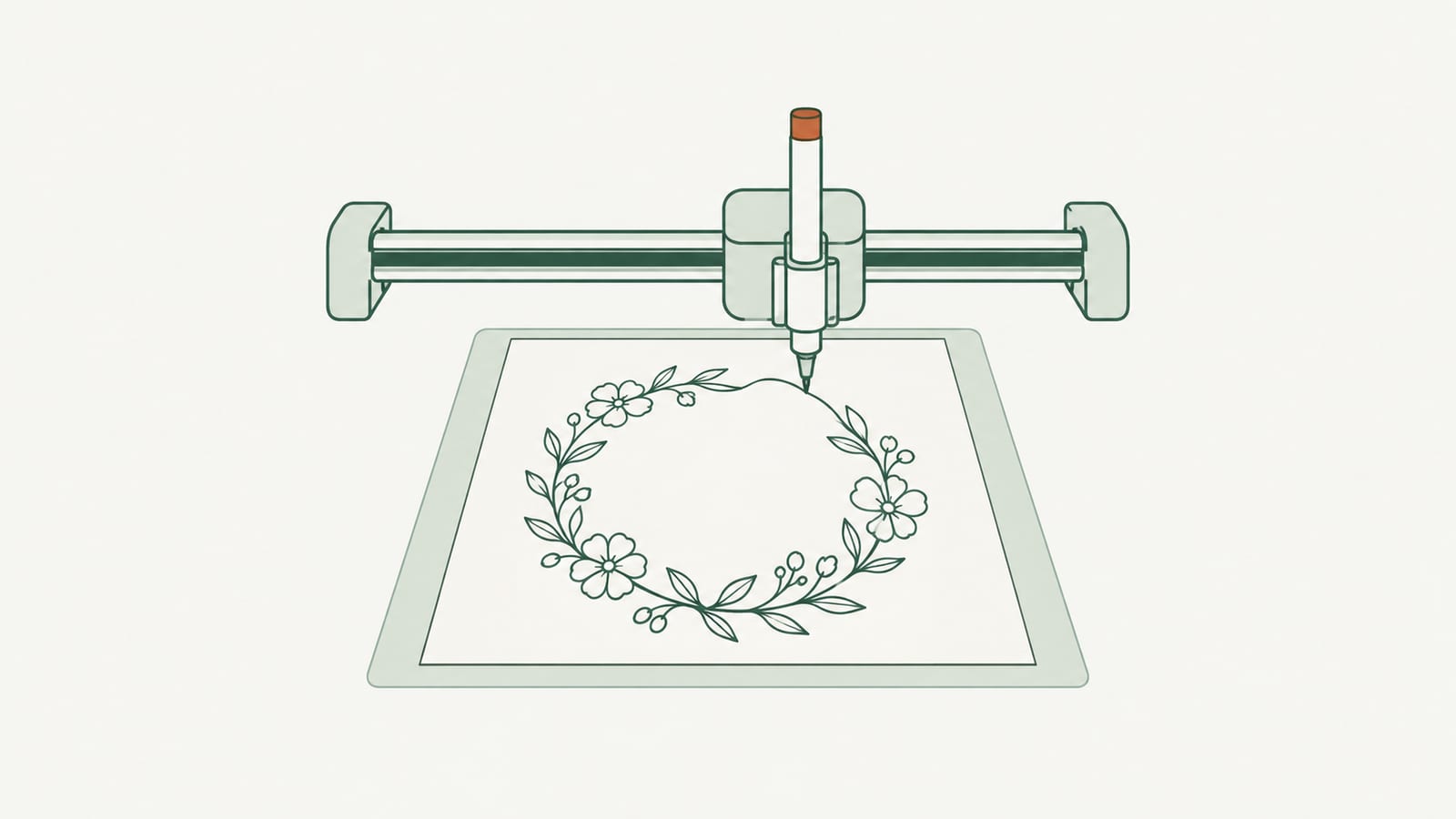
Best SVG Line Art Tools for Cricut, Laser Engraving & Pen Plotters Compared (2026)
Compare Inkscape Centerline Trace, Adobe Illustrator Image Trace, Cricut Design Space & LightBurn built-in trace, Vector Magic / Vectorizer.ai, and LineSVG for Cricut vinyl/draw, laser scoring, AxiDraw pen plotters, and CSS stroke animation.
Choosing the right SVG line art tool for digital fabrication or frontend motion depends entirely on whether your toolhead needs closed outer contours or true single-pass center strokes (stroke): use Inkscape's free Centerline Trace (autotrace) when you already have a crisp, high-contrast black-on-white technical scan and need strict zero-cost offline centerline tracing; use Cricut Design Space / LightBurn built-in trace, Adobe Illustrator Image Trace, or Vector Magic / Vectorizer.ai when cutting vinyl decals, laser-cutting wood silhouettes, or raster-engraving solid filled areas; and use LineSVG (linesvg.ai) when turning shaded camera photos, rough sketches, handwritten signatures, or text prompts into clean minimal single-path SVG strokes (Editable lines + Pure lines)—with in-browser stroke/AI cleanup and free CSS draw-on animation export.
| Tool | Default SVG Output | Cricut Vinyl Cut vs Pen / Foil / Score | Laser Cut & Fill Engrave vs Vector Score | Pen Plotters (AxiDraw) & Web CSS Stroke Animation | Pricing |
|---|---|---|---|---|---|
| Inkscape (Trace Bitmap & Centerline Trace / Autotrace) | Edge fill shapes by default; single <path stroke> in Centerline tracing (autotrace) mode | Strong for both when source art is a clean black-on-white ink scan | Clean for cut silhouettes; Centerline mode works well for single-pass score on clean line scans | Top free desktop choice for clean ink drawings; struggles with shaded camera photos (creates broken fragments) | Free & open source (Windows, macOS, Linux) |
| Adobe Illustrator (Image Trace) | Closed fill polygons by default; Line Art / Strokes toggle available with manual threshold tuning | Reliable for vinyl/cardstock cuts; Line Art mode needs manual anchor cleanup to prevent split junctions on pens | Industry standard for prepress + laser cut layouts; manual cleanup often needed before single-pass scoring | Good after manual path joining and stroke-width cleanup; overkill if you do not already subscribe to Creative Cloud | Paid Creative Cloud subscription |
| Cricut Design Space / LightBurn Built-in Trace | Closed perimeter cut/engrave contours around brightness thresholds | Built for fast vinyl/paper cut silhouettes; draws double lines if switched to Pen, Foil, or Score on line drawings | LightBurn Trace is fast for Fill Engrave and outer Cut paths; perimeter traces double-pass in Line/Score mode | Not built for AxiDraw centerlines or clean web <svg> code export | Cricut app free with machine; LightBurn paid license (free trial) |
| Vector Magic / Vectorizer.ai | High-precision interlocking closed fill color shapes | Excellent for multi-layer vinyl decals, logos, and print-then-cut stickers; double-tracks on pen/foil linework | Clean closed regions for Fill Engrave and cut-outs; lacks true single-line centerline output for scoring | Closed polygons cannot animate as single CSS stroke-dashoffset pen lines and plot both edges twice on AxiDraw | Paid subscription or pay-per-credit |
LineSVG (linesvg.ai) | Choice before generation: Editable lines (stroke), Pure lines (0% fill for machines), Cut-ready shapes, or Color layers | Pure lines gives single-pass paths for Pen / Foil / Score; Cut-ready shapes gives connected vinyl/paper silhouettes | Pure lines prevents double-burn on laser vector scoring; Cut-ready shapes builds bridge-connected laser cut files | Built for both: real center <path stroke> ready for AxiDraw and free in-browser draw-on SVG / MP4 / GIF export | Free demo & free SVG animator; 10 free signup credits (1 run at 10 credits/run); packs from $10; yearly plans from $20/mo |
Why Double-Line Outline Traces Ruin Pen Plotters, Laser Scoring, and CSS Animations
The single most frustrating mistake in maker and frontend SVG workflows happens when a file looks like thin black line art on screen, yet behaves like a hollow tube on hardware.
Standard bitmap tracers—including LightBurn's Trace Image, Cricut's upload cleaner, Vectorizer-class tools, and Illustrator's default Image Trace presets—detect boundaries between dark pixels and light pixels. Instead of placing one mathematical path down the middle of a pen mark, they wrap a closed polygon (<path fill="#000000"/>) up the left edge of the stroke and back down the right edge.
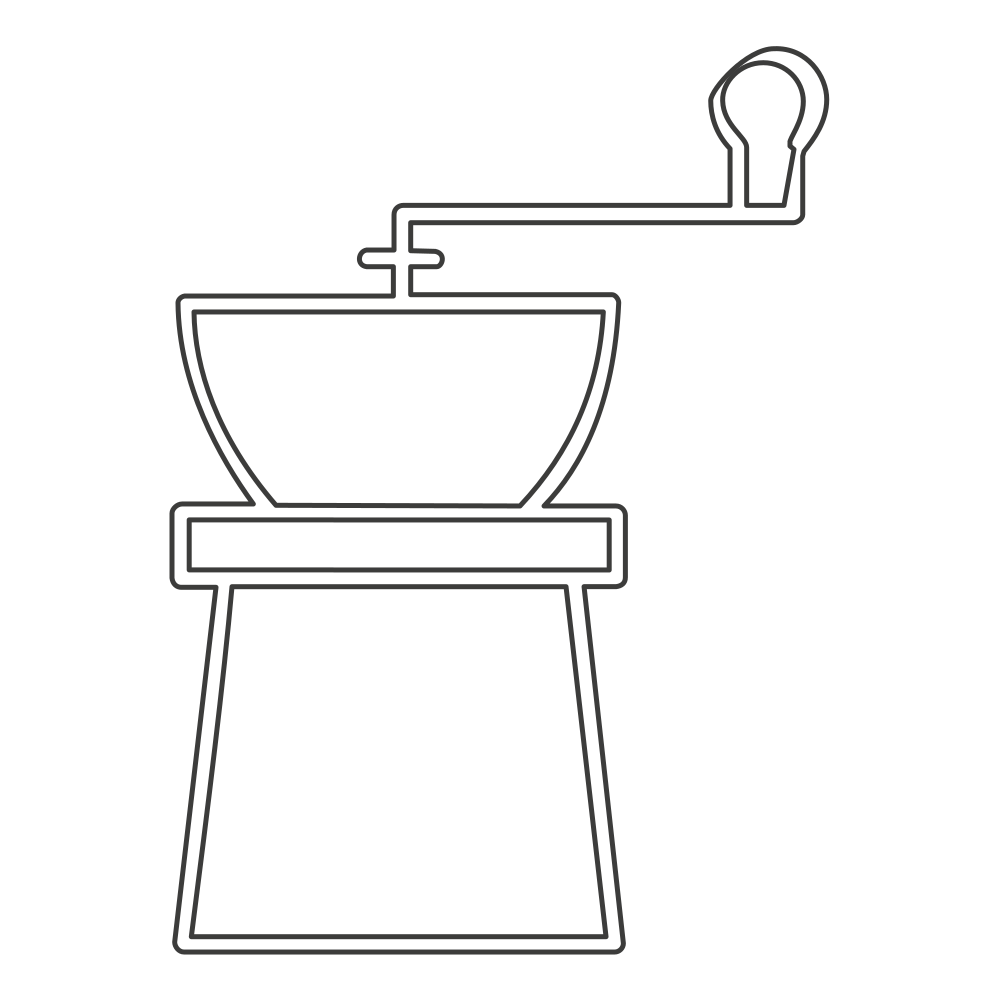 An outline trace wraps both outer edges of every dark mark: blades like it for thick stickers, but pens, foil tips, and laser score passes trace every line twice.
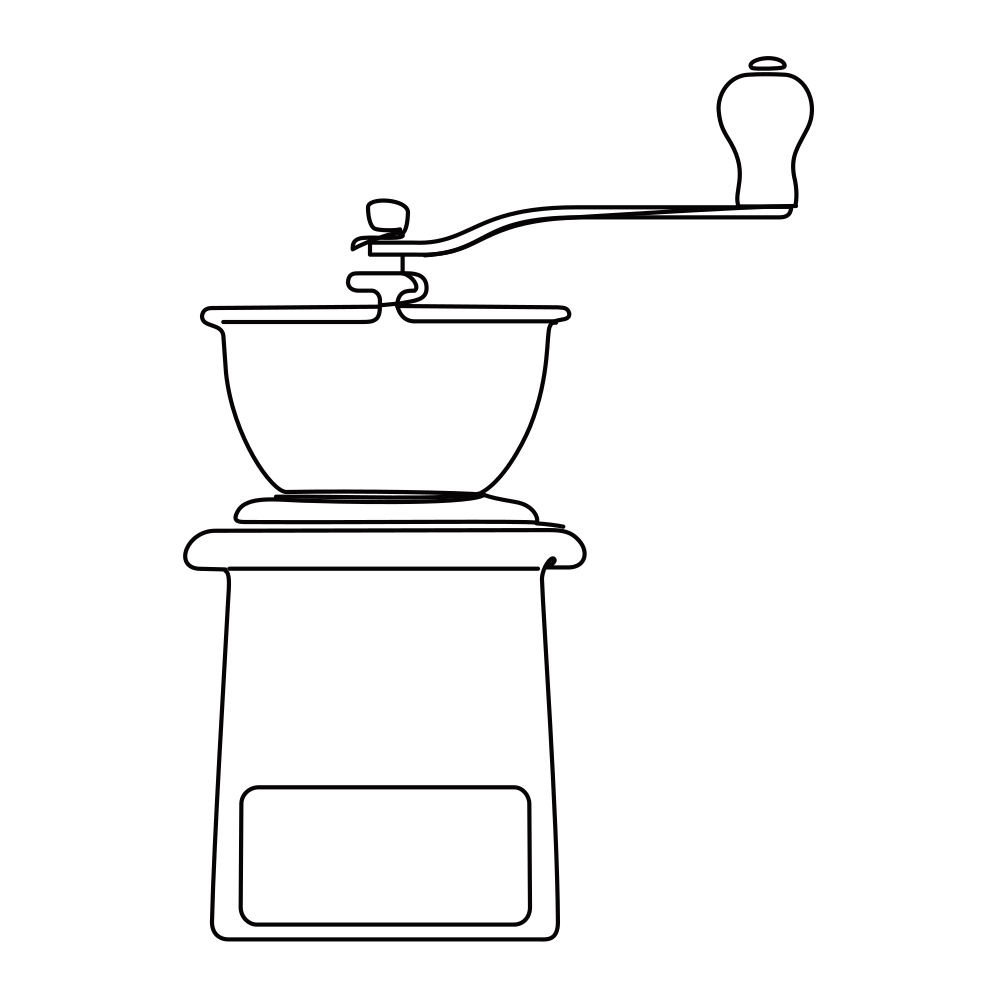 True single-line center strokes (
stroke): one <path> down the center of each mark, giving pens, plotters, laser scoring, and CSS stroke-dashoffset animations a clean single pass.
On physical machines and in browsers, that structural difference changes everything (see Stroke, outline or fill: the three kinds of line in an SVG):
- AxiDraw and pen plotters trace both edges of every line, doubling plot time, chewing up paper fibers on tight corners, and leaving hollow parallel rails where thick markers existed.
- Cricut Pen, Foil Transfer, and Scoring Stylus run twice along every stroke, smudging gel ink and tearing delicate foil sheets (detailed in Why your cutter or plotter draws double lines).
- Laser vector scoring / line engraving fires the beam down both sides of a narrow line, scorching wood edges and doubling job duration.
- Web CSS
stroke-dashoffsetanimations either fail completely (whenstrokeis unset) or animate two thin borders creeping around the outside of each mark instead of drawing like a single pen nib.
Scenario-by-Scenario Tool Comparison & Honest Trade-Offs
1. Strict Black-and-White Technical Scans vs. Shaded Camera Photos
Be honest about your starting image before choosing between local desktop tracing and AI stroke reconstruction:
- When Inkscape's free
Centerline Trace (autotrace)wins: If you inked a clean drawing with a black fineliner on bright white paper—or have a crisp monochrome technical scan—and need faithful pixel-aligned centerlines at zero cost, open Inkscape (Path > Trace Bitmap > Centerline tracing (autotrace)). Because it follows dark pixel ridges mathematically, its geometry stays closely locked to your scan. - When LineSVG (
linesvg.ai) wins: Camera photos of pets, portraits, buildings, botanicals, or notebook signatures contain soft shadows, fur textures, and uneven lighting. Runningautotraceon a shaded photo produces thousands of confetti-like path shards. Uploading that photo to LineSVG's Photo to line art or Signature to SVG reinterprets the subject into clean, minimal vector strokes—and lets you delete stray marks or simplify regions in the Online SVG editor before exporting. - When CAD / DXF software is mandatory: Neither bitmap tracers nor AI line-art generators preserve sub-millimeter engineering tolerances or kerf-compensated press-fit joints. Draft mechanical brackets, gears, and enclosures in AutoCAD, Fusion, or FreeCAD and export DXF/SVG directly.
2. Cricut Design Space: Vinyl Blade Cuts vs. Pen, Foil & Score
Cricut projects split into two opposite path topologies:
- Adhesive vinyl, HTV iron-on, and cardstock cut-outs: A drag blade needs closed shapes thick enough not to lift off the mat. Vector Magic / Vectorizer.ai excels at recovering multi-color logos into crisp interlocking layers, while LineSVG's Cut-ready shapes mode (Laser cut SVG) generates single-piece connected silhouettes from text or photos so interior islands don't fall out.
- Cricut Draw (pens/markers), Foil Transfer, and Scoring Wheel: Skip Design Space's built-in bitmap cleaner for thin linework—it always creates closed outlines. Generate or convert artwork in LineSVG's Single line SVG for Cricut (which preselects Editable lines + Pure lines so 0% filled shapes remain), import the SVG into Design Space, and switch Operation to Pen, Foil, or Score (step-by-step setup in Importing SVGs into Figma, Illustrator, Inkscape and Cricut).
3. Laser Cutters & CNC Routers (LightBurn, xTool Creative Space, Glowforge)
Laser software maps SVG structure directly to machine operations (see Laser cutting vs engraving vs scoring):
- Fill Engrave (raster scanning) & Outer Cut: LightBurn's built-in Trace Image and Illustrator Image Trace are fast and dependable when you want solid dark regions raster-burned across wood, leather, or anodized aluminum.
- Line / Score (vector line engraving) & CNC V-carving: When you want the laser head or CNC bit to travel smoothly along ornamental scrollwork, botanical illustrations, or portrait contours in a single pass, use LineSVG's CNC & laser engraving SVG with Pure lines (for machines) enabled. You can even combine two exports in LightBurn: a Cut-ready shapes outer border on a red Cut layer, and a Pure lines inner illustration on a blue Line/Score layer.
4. Pen Plotters (AxiDraw / iDraw) & Web CSS Draw-On Animations
Pen plotters and frontend <svg> animations share the exact same requirement: clean, continuous <path> geometry with fill="none" and a real stroke attribute.
- For AxiDraw / Inkscape Plotter workflows: Generate minimal continuous portraits in One line drawing or Botanical line art under Pure lines, then run Inkscape's AxiDraw extension (and optional path-order optimization) to minimize pen-up travel.
- For Web CSS / SVG stroke animations: Drop any stroke SVG (up to 2 MB)—whether created in LineSVG, Illustrator, Figma, or Inkscape—into LineSVG's Free SVG stroke animator. Previewing and exporting self-drawing
stroke-dashoffsetSVGs, 1080p MP4 videos, and GIFs is completely free (0 credits, no login required).
Pre-Export Checklist for Clean Machine & Animation SVGs
- Verify the real-stroke ratio before downloading: In LineSVG, check the workspace badge (aim for
100%strokes via Pure lines when plotting, scoring, or foiling). In desktop editors, pressCmd/Ctrl + Yfor Outline view. - Keep an editable stroke master separate from outlined cut copies: Once you run
Outline Strokefor vinyl cutting,stroke-widthis gone forever. - Crop shadows and ruled paper before tracing: Tight cropping around your subject prevents background clutter from turning into stray toolhead travel.
- Test scale with a live
stroke-widthslider: Preview whether thin lines visually merge at postcard size or feel too sparse at poster size before committing material.
Frequently Asked Questions (FAQ)
Why does Cricut Design Space or LightBurn trace my drawing as double lines?
Built-in bitmap tracers outline the transition between dark ink pixels and white paper, producing a closed loop around both outer edges of each line. When assigned to Cricut Pen/Foil or LightBurn Line (score) mode, the machine follows both sides of that loop. Use Inkscape's Centerline tracing (autotrace) on clean black-and-white scans, or generate Editable lines + Pure lines in LineSVG to get a single center path per line.
When should I use free Inkscape Centerline Trace instead of LineSVG?
Use Inkscape Centerline Trace when you already have a clean, high-contrast black-on-white drawing or technical scan, want strict pixel-faithful local tracing, and want a 100% free offline desktop tool. Use LineSVG when starting from a shaded camera photo, uneven smartphone picture of a signature or sketch, or a text prompt—where AI stroke reconstruction plus in-browser path editing avoids noisy fragmented traces.
Can Vectorizer.ai or Vector Magic create single-line SVGs for pen plotters or CSS stroke animation?
Vector Magic and Vectorizer.ai are engineered to reconstruct raster images into interlocking closed filled color polygons (fill), which makes them outstanding for multi-color logos, screen printing, and vinyl stickers. However, closed filled polygons do not store a single centerline with stroke-width, so pen plotters trace both outer edges and CSS stroke-dashoffset cannot animate them like a single pen stroke.
How do I animate an SVG line drawing for my website for free?
Make sure your SVG uses real <path stroke="..."> paths rather than filled outlines, then open LineSVG's Free SVG stroke animator. Without signing in or spending credits, you can choose Draw on or Fade in, set stroke order and duration, and export a lightweight self-playing .svg for web pages alongside 1080p .mp4 or .gif files.
How much does LineSVG cost, and what can I try for free?
Playing the workspace demo, restyling stroke width/color/dashes on uploaded SVGs (up to 2 MB), and exporting draw-on SVG/MP4/GIF animations cost 0 credits with no login required. New accounts receive 10 welcome credits valid for 30 days (no credit card needed), and each text generation, image-to-SVG conversion, or AI edit uses 10 credits (1 free run; failed tasks automatically refund credits). One-time credit packs start at $10 (100 credits for $10 up to 1,500 credits for $100), and subscriptions start at $20/month billed yearly ($240/year or $50/month for Basic with 500 monthly credits; Pro, Enterprise, and a $1,999 Lifetime plan are also available on the pricing page).
Author

More Posts
CNC & Laser Engraving SVGs: Convert Patterns to Single Paths
Convert traditional motifs, dark-background reliefs and photos into continuous, unbroken single-line SVG paths with zero double outlines for CNC and lasers.
Why can't I change the line width in my SVG?
Can't change the line width in your SVG? The lines are probably filled outlines, not strokes. Learn how to check any file and get line art you can adjust.
Why your cutter or plotter draws double lines (and how to fix it)
Why does your cutter or plotter draw double lines? Usually the SVG is an outline trace or has duplicate paths. Learn to diagnose it and use single-line files.