Why your cutter or plotter draws double lines (and how to fix it)
Why does your cutter or plotter draw double lines? Usually the SVG is an outline trace or has duplicate paths. Learn to diagnose it and use single-line files.
You load a lovely line drawing, set the Cricut to pen or the laser to score, and watch it trace every line twice: once along one edge, once along the other. The result looks like railway tracks instead of a drawing. If your cutter or plotter draws double lines, the machine is doing exactly what the file tells it to. The fix is to change the file, not the machine settings.
Quick answer: Double lines almost always come from one of two things. Either each line in the SVG is an outline (a thin closed shape with two edges), so the tool follows both edges, or the file has duplicate paths stacked on top of each other. Use a single-line file made of real strokes for pen, foil and score, and delete duplicates before cutting.
Cause 1: the line is an outline, not a single path
Your machine follows paths. A pen, foil tip or score line travels each path once. That works perfectly when a line in your drawing is a stroke: one path with a thickness setting.
Most SVGs, however, store lines as outlines. The file describes the edge of each mark, all the way around, like a very thin balloon. On screen the inside is filled so it looks like a line. The machine ignores the fill and follows the edge, which runs along both sides of the mark. Two edges, two lines.
This is a classic complaint on maker forums. A Glowforge thread is titled simply "scoring creates double lines" (Glowforge community), and LightBurn users report the same symptom with SVG files (LightBurn forum). For Cricut foil, crafters point out that foil only works with single-line images for this reason (Hey, Let's Make Stuff).
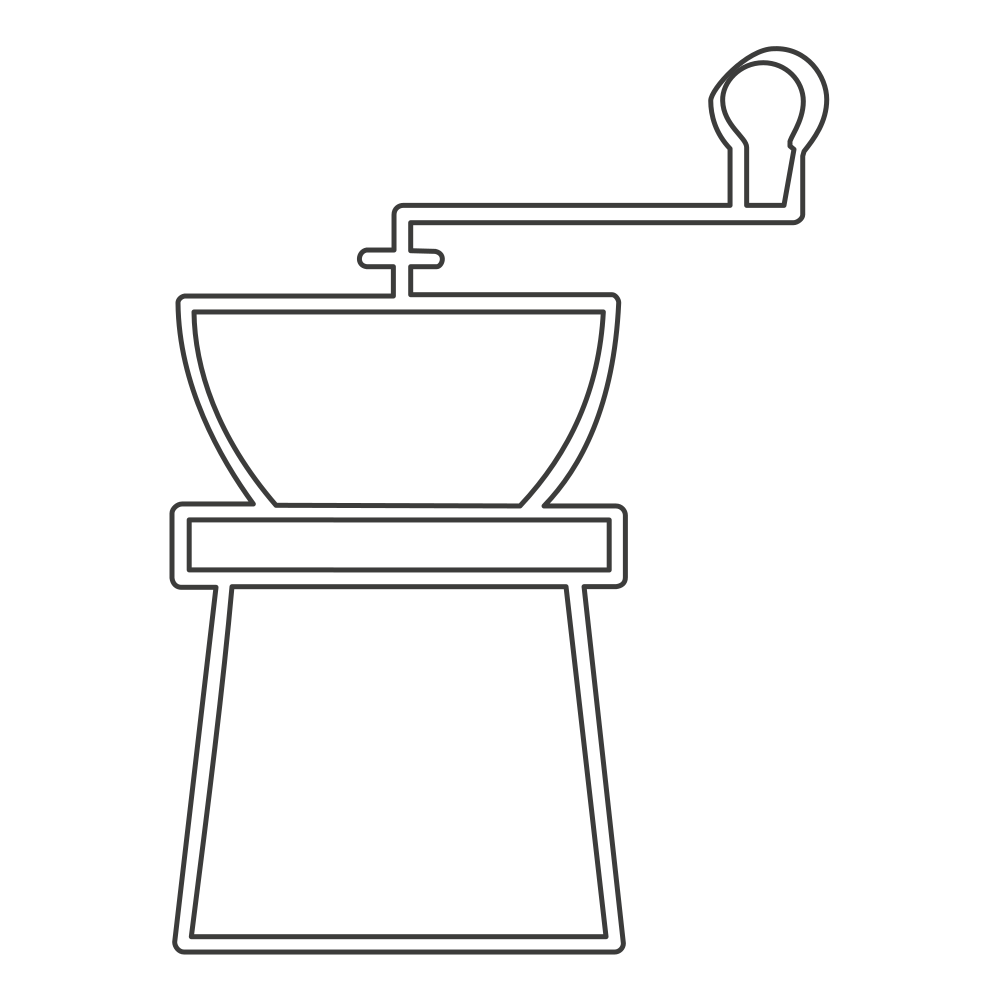 A thick-line icon redrawn as strokes that traced both edges of each line: on a pen or score operation, every line would be drawn twice.
Where outline files come from
- Auto-tracing a picture. Standard image trace finds edges of dark areas. A pen line has two edges. Inkscape and CorelDRAW both offer a separate centerline mode precisely because regular outline tracing produces this (Inkscape tracing, CorelDRAW trace modes). Some popular vectorizers do not offer centerline tracing at all (Vectorizer.AI).
- "Outline Stroke" or "Stroke to Path". Useful before cutting, wrong before drawing.
- Files sold for cutting. A cut file is supposed to be outlines. Loading it onto a pen or foil operation gives you the edges.
Cause 2: duplicate paths stacked on top of each other
The second cause is less visible. Some files contain the same path twice, exactly on top of itself. On screen you see one line. The machine cuts or draws it twice, which can char a laser edge, tear thin vinyl or double the ink.
Duplicates often appear when a design is both filled and stroked and later expanded, when artwork is copied and pasted in place, or when separate layers each hold a copy. Illustrator users run into "double cut lines" from exactly this (Adobe community).
How to tell which problem you have
- Switch to outline or wireframe view in your editor. If each line shows as two parallel edges that meet at the ends, it is an outline. If it shows as one path, it is a stroke.
- Click a single line. If the selection is a closed shape with a fill color, it is an outline.
- Drag the top path aside. If an identical copy remains underneath, you have duplicates.
- Check the layer or object count. Twice as many objects as you expect usually means duplicates.
- Do a test run on scrap with the slowest, lightest setting before a real job.
How to fix double lines
For duplicates, delete the extra copies. Select all, move the top layer off to the side, delete what is left underneath or merge the layers, and check the count again.
For outlines on a pen, foil or score job, you have three options:
- Centerline trace the source image. In Illustrator this takes a few specific trace settings (Glowforge centerline guide). Inkscape offers a centerline mode. Results depend heavily on how clean the input is.
- Redraw the lines by hand over the outline with the pen tool. Reliable, slow.
- Start with a single-line file. A file built from strokes needs no conversion. Single-line draw and foil SVGs are designed so the tool passes each line once (That's What Che Said).
Converting a finished filled outline back into one line is genuinely difficult (Adobe community), so for anything more than a few lines, starting over with a stroke file is usually faster.
For a cut job, outlines are correct. If the cutter cuts both edges of a thin line, it is actually cutting out a thin sliver. Decide whether you want that sliver, or whether the design should be a solid connected shape instead.
Get single-line files from LineSVG
LineSVG lets you choose the file structure before you generate, which avoids the problem at the source.
- Pick Editable lines and turn on Pure lines (for machines). This forbids any filled element, so the SVG contains only strokes for pen plotters, Cricut pen, foil and score, embroidery running stitch and CNC engraving.
- Describe the design or upload an image. Thin line drawings come back as real strokes; thick or solid artwork stays filled.
- Check the label. Results show their share of real strokes, such as "Editable lines · 92%" or "Contains filled shapes · 20% lines". For a machine job you want strokes throughout.
- If an upload comes back with no strokes, use Redraw as lines to redraw it as line art. It works best on inputs that already have thin lines.
- Download the SVG and in your machine software assign it to draw, foil or score.
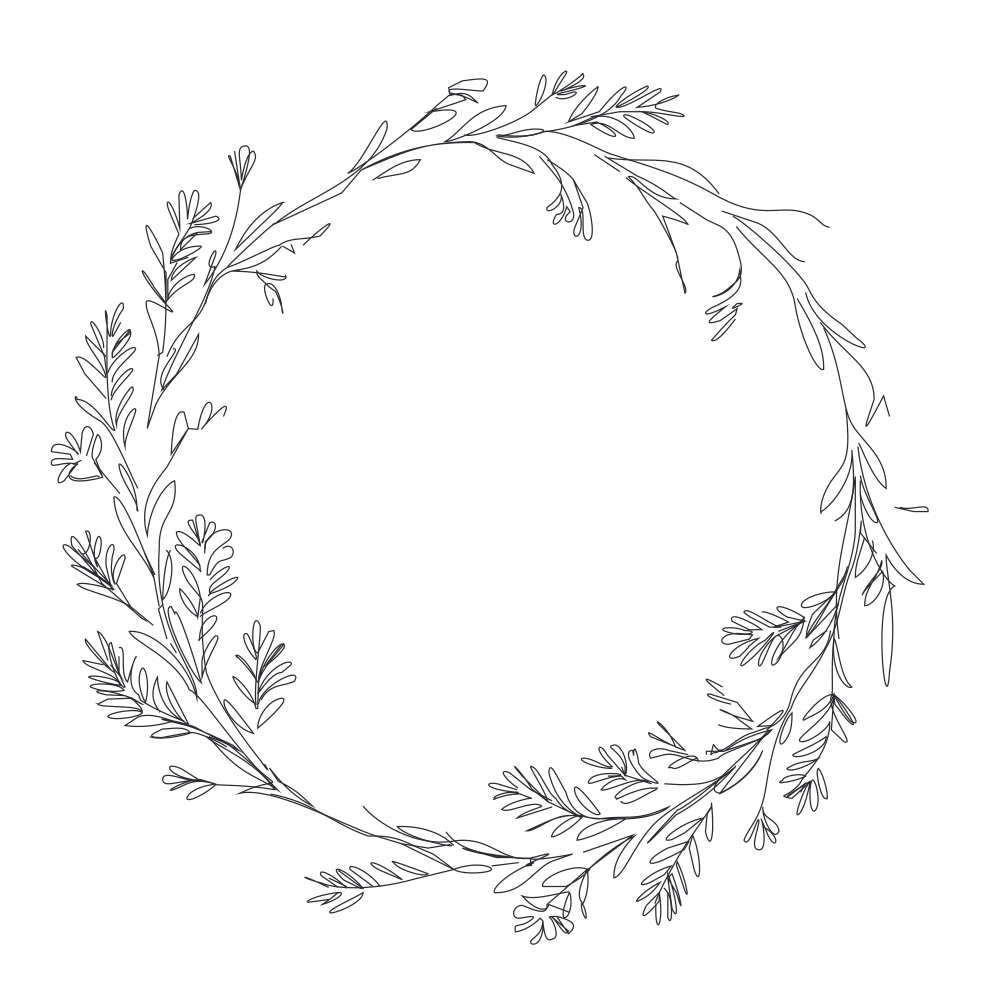 A floral wreath single-line file: 100% strokes, no fills, so a pen or foil tip passes each line once.
For pieces that should be cut out rather than drawn, choose Cut-ready shapes instead. You get closed filled shapes with connected parts, which is what a blade or laser should follow. The full comparison is in stroke, outline or fill.
Draw each line once
Double lines are a file-structure problem with a file-structure fix. For pen, foil and score, start with the single line SVG tool. For cut pieces, use laser cut SVG. For a step-by-step Cricut walkthrough, see single line SVGs for Cricut pen, foil and score.
More Posts
Botanical line art for labels, invitations and packaging
Create botanical line art for labels, invitations and packaging as SVG: set stroke color and weight for print, foil single-line leaves, keep branches crisp.

Make printable coloring pages with line thickness that fits the age
Make printable coloring pages from a text prompt or drawing, then set the line thickness for toddlers, kids or adults before you print or sell the SVG.
Image to SVG: prepare a better source drawing
Image to SVG works best with a clean source. Learn how to photograph, crop and clean a sketch so it traces into real, editable SVG strokes instead of fills.