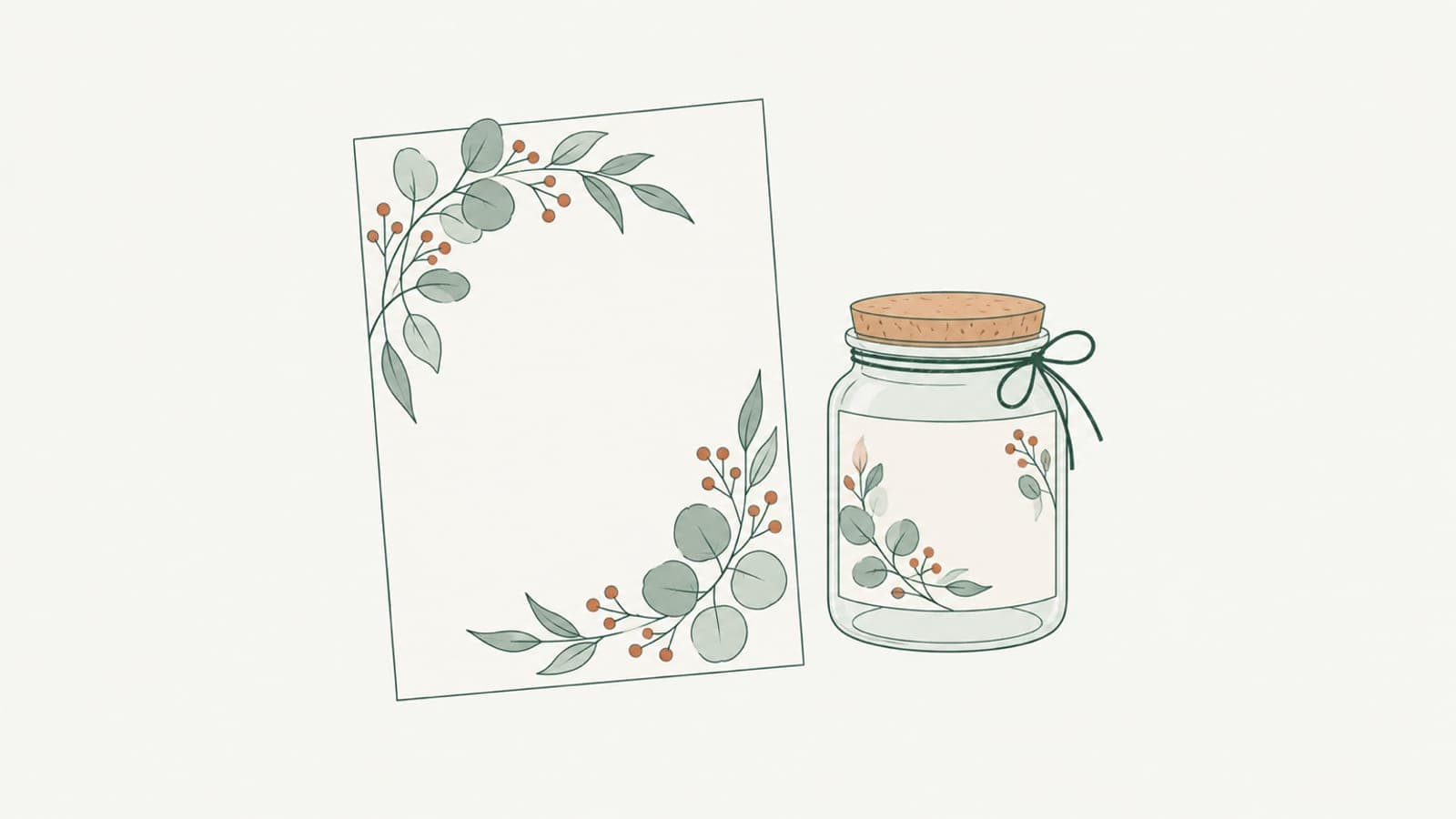
Botanical line art for labels, invitations and packaging
Create botanical line art for labels, invitations and packaging as SVG: set stroke color and weight for print, foil single-line leaves, keep branches crisp.
A sprig of eucalyptus on a candle label, a wreath of olive leaves around a wedding monogram, a fern running up the side of a tea box. Botanical line art is everywhere in small-brand design because it feels handmade and calm. The practical problem is making it work across sizes and materials: the same drawing has to look delicate on an invitation, hold up on a small jar label, and possibly go through a foil machine or a print shop. This guide covers how to create botanical line art as an SVG that adapts to each of those jobs.
Why line structure matters for print and packaging
Most botanical clip art is sold as flattened images or as vectors built from filled shapes. Both print fine at one size. Trouble appears when you reuse the drawing:
- Scaling changes the look. Shrink a filled-outline branch for a small label and its lines get thinner along with everything else, until the fine veins disappear. Enlarge it for a box and the lines get heavy.
- Recoloring is fiddly. Matching a brand color means selecting many tiny shapes instead of changing one setting.
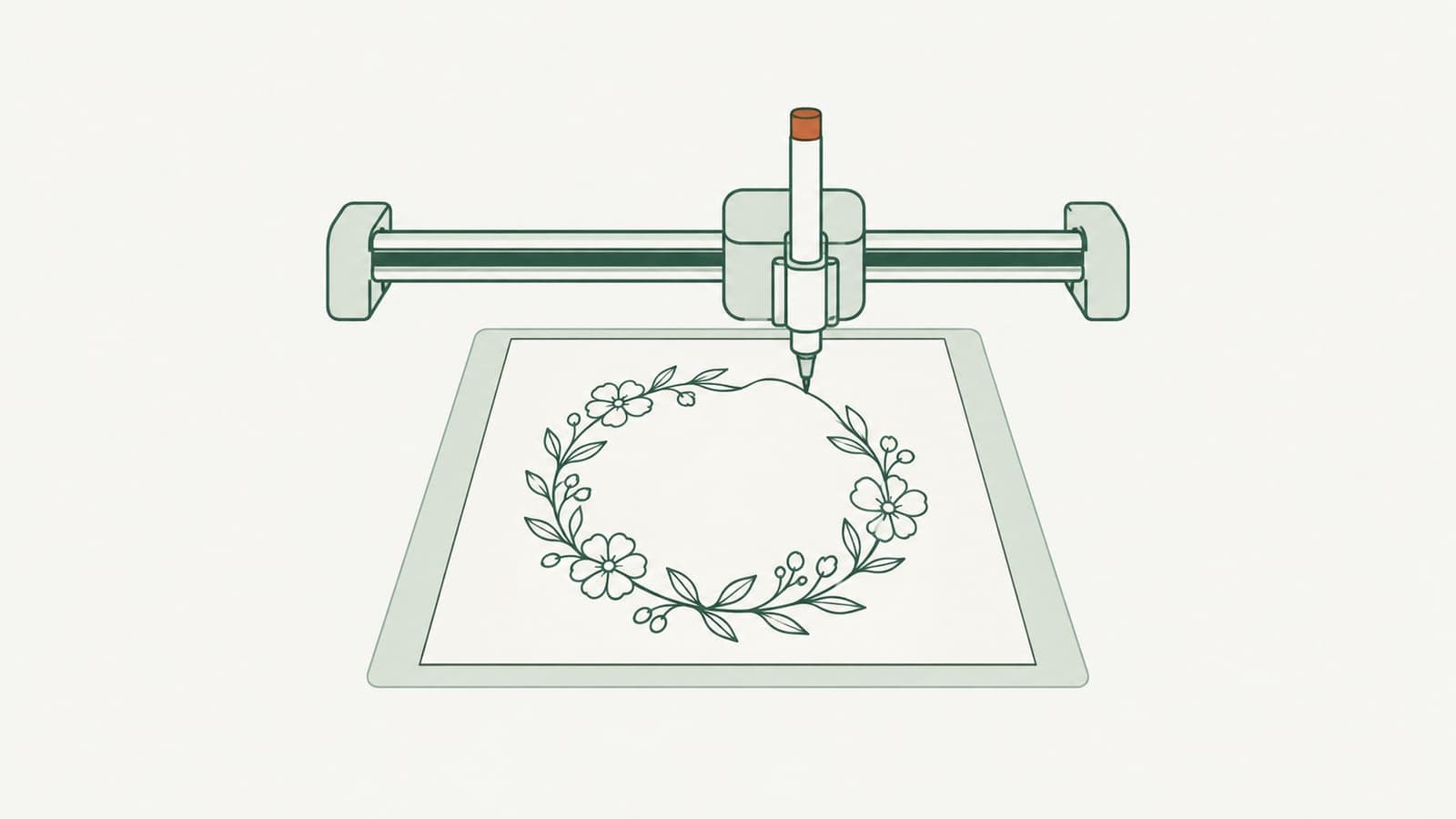
- Machines read it wrong. Pen and foil tools follow paths, so a filled outline gets drawn around both edges.
A drawing made of strokes avoids all three. A stroke is a line with a thickness setting, so you can scale the branch and then set the line weight that suits the new size, or change the color of every leaf at once. The post on editable SVG strokes explains how to tell the two structures apart.
Generating botanical line art in LineSVG
The botanical line art generator turns a text description into an SVG that streams onto the canvas as it is drawn. Choose Editable lines before generating for most label and stationery work. The result uses real SVG strokes, and tiny solid accents such as berries or seed dots may stay as small fills, which usually adds a pleasing touch of weight.
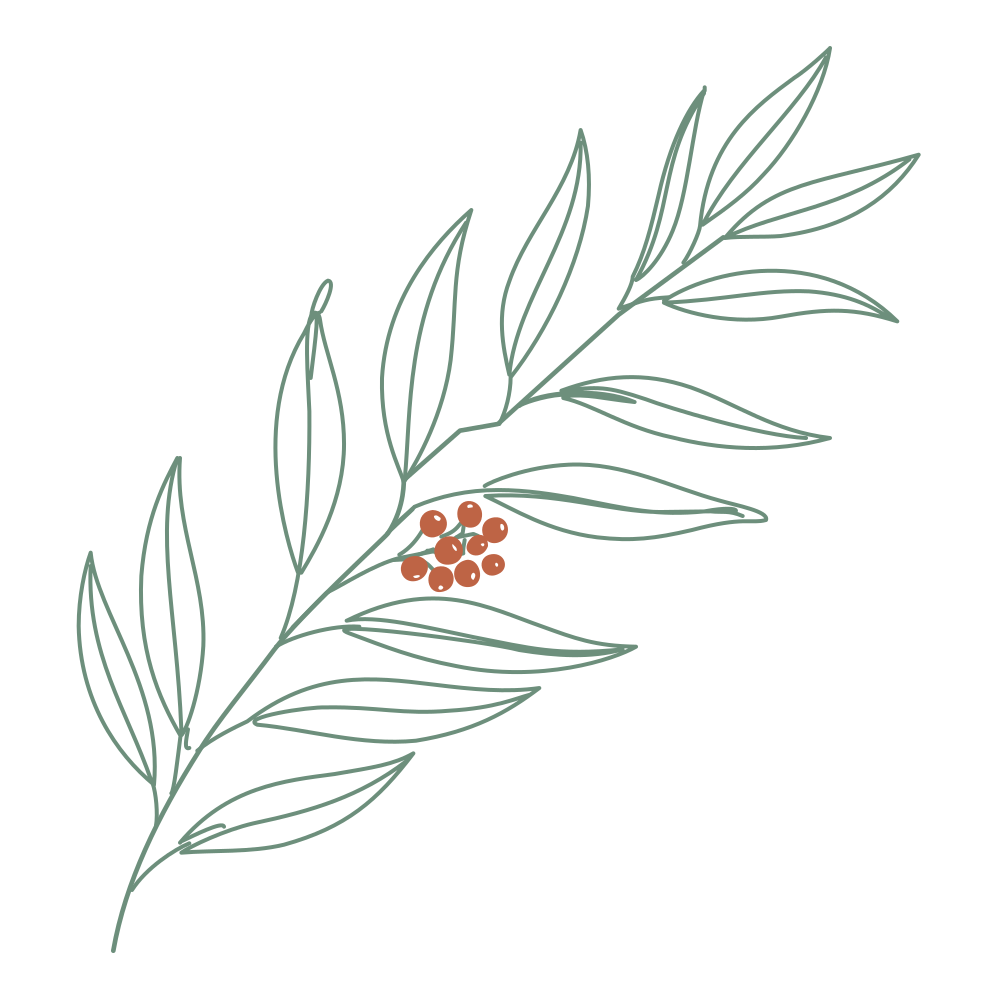 A eucalyptus branch generated as Editable lines: stroked leaves and stems with small solid berries.
Prompts that work well name the plant, the arrangement and the density: "olive branch curving into a half wreath, sparse leaves, clean line drawing, no shading". Sparse compositions read better on small labels; dense ones suit large invitation borders.
After generation, check the label on the result. "Editable lines · 92%" means nearly every mark responds to the stroke sliders. Then adjust:
- Stroke width to suit the final print size.
- Stroke color to match your brand palette, such as sage green, terracotta or gold-toned brown.
- Dashes for a stitched or dotted look on kraft packaging.
Save each variant as a new version in My creations, so a "label weight" and an "invitation weight" of the same branch stay one click away.
Matching the file to the job
Each product has slightly different needs. Use this as a checklist when you prepare files.
Product labels
- Zoom out to the actual label size before exporting. Fine veins that look lovely on screen can fill in when printed small; raise the stroke width or choose a sparser drawing.
- Keep the botanical element and the text visually separate so the product name stays readable.
- Download SVG for your label software or PNG for quick mockups.
Wedding invitations and stationery
- Match stroke color to the ink or envelope palette so the illustration feels part of the suite.
- For home foiling, the drawing must be single lines. Cricut's foil tool works only with single-line images, because it presses along the path rather than filling areas. Turn on Pure lines (for machines) so the file contains no filled elements, or use the single line SVG tool, which is set up for Cricut pen, foil and score.
- If you send artwork to a print shop for foil stamping or letterpress, ask which structure they want. Many ask for strokes converted to outlines before making a plate; do that as the final step in your own editor (for example, Outline Stroke in Illustrator) and keep the stroke version as your master.
Packaging and boxes
- For large panels, a heavier stroke keeps the drawing visible at arm's length on a shelf.
- If your editor scales stroke width along with the artwork, check the weight again after resizing.
- For die-cut windows or laser-cut gift tags, generate the shape separately as Cut-ready shapes, which produces closed filled shapes with connected parts.
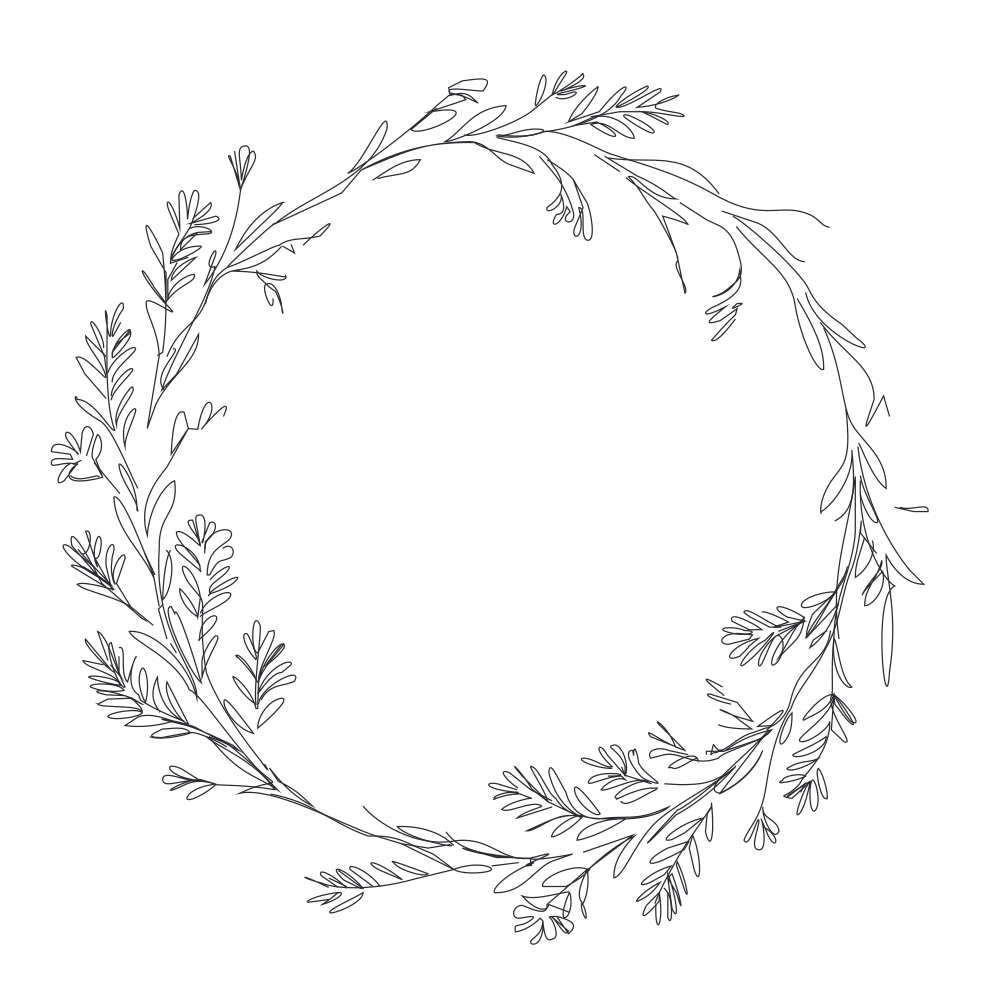 A floral wreath generated as a single-line file: 100% strokes and no fills, ready for pen or foil.
Tracing your own botanical sketches
If you already draw, you can keep your own hand. Upload a PNG, JPG or WebP (up to 20 MB) and LineSVG traces it into an SVG. The trace is faithful to the drawing: thin pen lines come back as real strokes, while thick or solid artwork stays filled. For photographs of pressed flowers or watercolor studies, the image to SVG tool is the place to start, and Redraw as lines can redraw an upload as line art if the first result has no strokes. It costs the same credits as a text generation and works best when the input already has thin lines.
 A botanical drawing traced from an uploaded image into SVG.
To get a clean trace:
- Draw with a fine, dark pen on smooth white paper.
- Scan or photograph in even light, without shadows across the page.
- Crop to the plant and remove smudges, notes and paper texture.
- Keep lines single; going over a line twice tends to trace as two edges.
More detail is in Image to SVG: prepare a better source drawing.
Building a small botanical library
Brands and stationery studios get the most value by building a set rather than generating one-off images. Generate a handful of plants in the same style prompt, set a shared stroke width and color, and save each as a version in My creations. When a new product or client comes along, you pick a branch, adjust the weight for the size, and export. The drawings stay consistent because the line settings are consistent.
Start with the botanical line art generator for labels and invitations, switch to the single line SVG tool for Cricut foil and pen work, and use image to SVG when you want to keep your own drawings.
More Posts
How to make single line SVGs for Cricut pen, foil and score
Make single line SVGs for Cricut pen, foil and score: why outlined files draw double lines, how to generate pure strokes, and the Design Space settings to use.

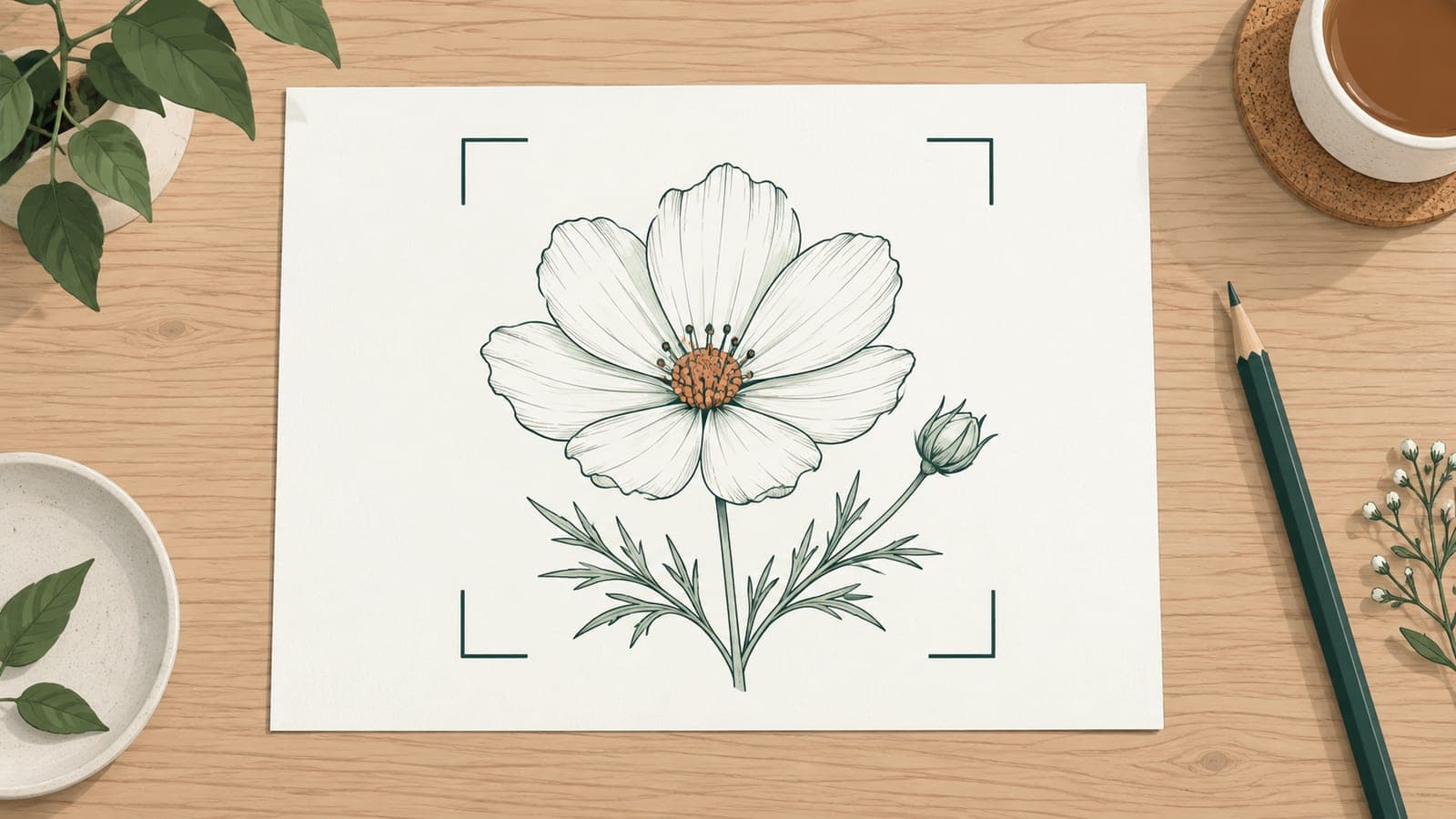
Image to SVG: prepare a better source drawing
Image to SVG works best with a clean source. Learn how to photograph, crop and clean a sketch so it traces into real, editable SVG strokes instead of fills.

Why your cutter or plotter draws double lines (and how to fix it)
Why does your cutter or plotter draw double lines? Usually the SVG is an outline trace or has duplicate paths. Learn to diagnose it and use single-line files.