Why can't I change the line width in my SVG?
Can't change the line width in your SVG? The lines are probably filled outlines, not strokes. Learn how to check any file and get line art you can adjust.
You open an SVG to make the lines a little heavier, select everything, drag the stroke width up, and nothing happens. Or worse, every line suddenly grows a thin border around it. If you can't change the line width in your SVG, the file is not broken and your editor is not at fault. The drawing is simply built from a different kind of line than the one you expected.
Quick answer: Your "lines" are almost certainly filled outlines: long, thin shapes whose width is baked into their geometry. Line width is a property of a stroke, and a filled shape has no stroke to widen. To get adjustable lines you need an SVG made of real strokes, such as LineSVG's Editable lines output.
Strokes and filled outlines look the same but are built differently
An SVG can draw a line in two ways.
- A stroke is a line with a thickness setting. The file stores the path the pen travels (the centerline) and then says "draw this path 3 units wide in dark green." Change the 3 to 6 and the line gets heavier while the path stays exactly where it was.
- A filled outline is a shape that happens to be long and thin. The file stores the outer edge of the visible mark, all the way around, and fills the inside with color. The width is not a setting; it is the distance between two edges.
The SVG specification treats fill and stroke as two separate painting operations (W3C SVG painting). When you add a stroke width to a filled outline, the editor paints a border along its edge. That is why lines get a halo instead of getting thicker.
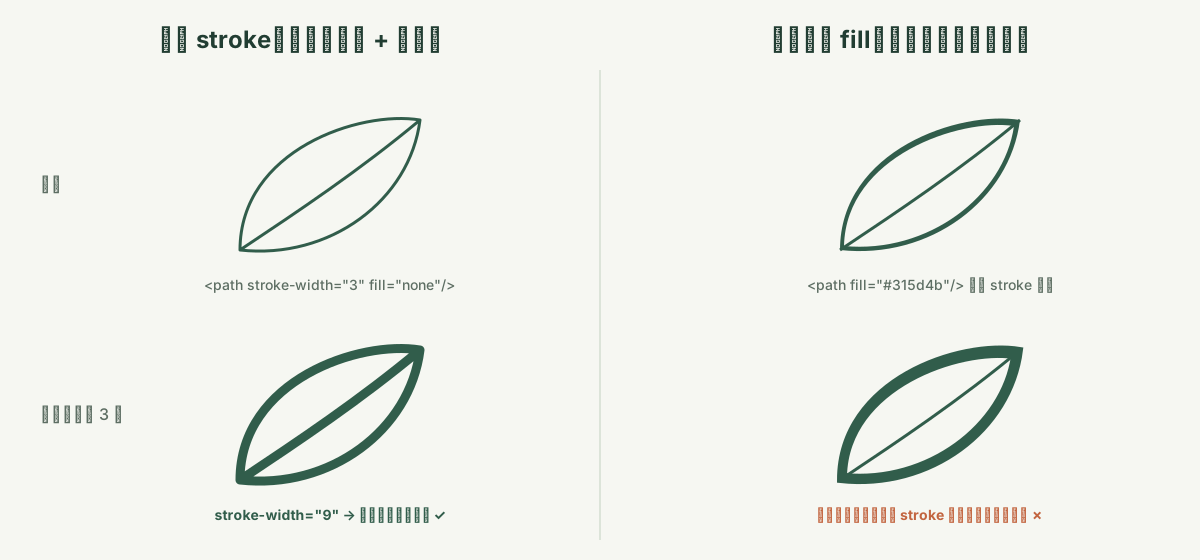 The same leaf twice: as a stroke, widening works; as a filled outline, there is no width to change.
Here is what a real stroke looks like in code:
<svg xmlns="http://www.w3.org/2000/svg" viewBox="0 0 100 100">
  <path d="M20 80 Q50 10 80 80"
        fill="none" stroke="#477b69"
        stroke-width="3" stroke-linecap="round" />
</svg>
Change stroke-width="3" to stroke-width="6" and the curve doubles in weight. A filled outline of the same curve would instead have fill="#477b69" and a path that runs up one side of the line and back down the other.
Why so many SVGs end up as filled outlines
Most SVG files you download or convert were never drawn as strokes. A few common reasons:
- Auto-tracing. Most image-to-vector converters trace the edges of dark areas. A pen line in a scan is a dark area with two edges, so it comes back as a filled outline. Some tools say this plainly; Vectorizer.AI, for example, states it has no centerline tracing (output options).
- Outline Stroke on export. Designers often convert strokes to shapes so that files look identical everywhere, or because cutting software needs closed shapes.
- Brush and pencil tools. Variable-width brushes in many apps produce shapes, not strokes.
- AI image generators. A raster picture has no structure at all, so anything that vectorizes it has to guess.
Turning a finished filled outline back into a single centerline is hard, even in Illustrator (Adobe community thread). It is usually faster to start from a file that was built with strokes.
How to check whether your SVG has real strokes
You can check any file in a couple of minutes.
- Select one line in Figma, Illustrator or Inkscape and look at the appearance panel. A stroke shows a stroke color and a stroke width, with fill set to none. A filled outline shows a fill color and no stroke.
- Switch to outline or wireframe view (Illustrator: View, Outline; Inkscape: View, Display mode, Outline). A stroke shows as one thin path. A filled outline shows as two parallel edges that meet at the ends.
- Change the stroke width on a copy. If the line gets heavier, it is a stroke. If a border appears around it, it is a filled outline.
- Open the file in a text editor. Look for
stroke-widthandfill="none"on paths. Styles can also sit on a parent group, so check the group tags too. - Sample several spots. Illustrations often mix both: strokes for most lines, fills for dots, eyes or small solid details.
How LineSVG gives you lines you can adjust
LineSVG was built around this exact problem. Before you generate, you pick an output type, and the default for drawing tools is Editable lines: the SVG is made of real strokes.
After generation you get sliders for stroke width, stroke color and dashes. Moving them changes how each line is painted; the path itself does not move, so the drawing keeps its shape at any weight. Tiny solid accents such as dots or berries may stay as small fills, which is usually what you want.
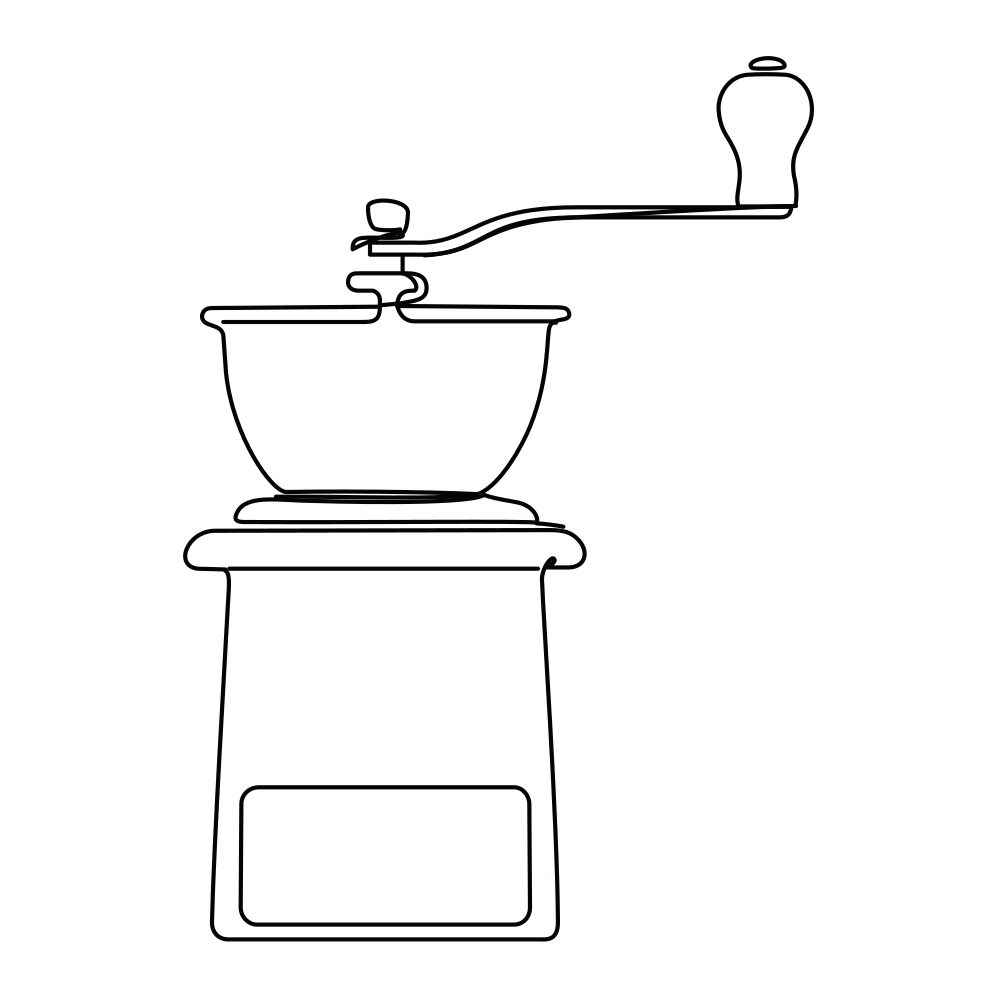 A coffee grinder generated as Editable lines: 100% strokes, so every line responds to the width slider.
You do not have to open the code to know what you got. LineSVG labels every result with its share of real strokes, for example "Editable lines · 92%" or "Contains filled shapes · 20% lines". A high percentage means the sliders will affect nearly the whole drawing.
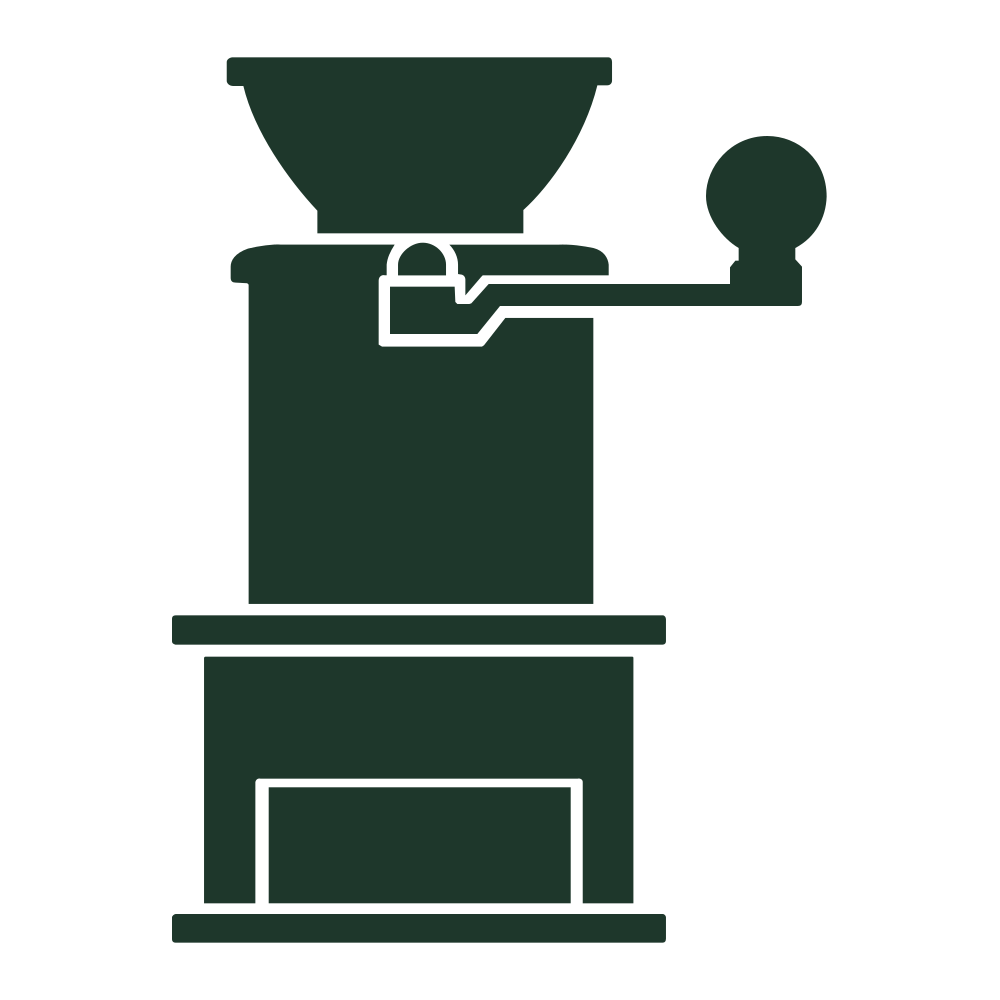 The same subject as a filled silhouette. It looks fine, but there is no line width to change.
If you start from an image, LineSVG traces it faithfully: thin line drawings come back as real strokes, and thick or solid artwork stays filled. When an upload comes back with no strokes, a Redraw as lines button redraws the image as line art. It works best on inputs that already have thin lines, so a clean sketch is a better starting point than a heavy poster. See how to prepare a better source drawing for tips.
Tips for keeping lines editable
- Thin, high-contrast lines trace best. Dark pen on white paper gives the cleanest strokes.
- Pick the output type for the next step. Editable lines for illustration and print, cut-ready shapes for laser cutting and vinyl. The difference is explained in stroke, outline or fill.
- Keep a stroke version even if you need to cut later. You can always convert strokes to shapes in your editor; going the other way is the hard part.
- Save your adjusted weight as a new version in My creations, so the original stays untouched.
Get SVG lines you can still change
If your current file is a set of filled outlines, stop fighting the stroke panel and generate line art that was built with strokes from the start. Describe what you want in the line art generator, or upload an existing drawing to Image to SVG and check the stroke percentage on the result.
More Posts
Make printable coloring pages with line thickness that fits the age
Make printable coloring pages from a text prompt or drawing, then set the line thickness for toddlers, kids or adults before you print or sell the SVG.

One line drawings for weddings, pets and couples
Create one line drawings of couples, wedding guests and pets as clean SVG strokes for invitations, signs, foil cards, engraved gifts and framed prints.

Laser cutting vs engraving vs scoring: which SVG structure to use
Laser cutting vs engraving vs scoring: learn which SVG structure each operation needs, why scores come out as double lines, and how to prepare cut-ready files.