Image to SVG: prepare a better source drawing
Image to SVG works best with a clean source. Learn how to photograph, crop and clean a sketch so it traces into real, editable SVG strokes instead of fills.
You drew something you like on paper, took a phone photo, and now you want an SVG. The image to SVG step is where most of the frustration happens: shadows turn into grey blobs, pencil guides show up as extra lines, and a marker outline comes back as two parallel edges instead of one clean line. Almost all of this is decided before you press Generate, by the picture you feed in.
This guide walks through how to prepare a source drawing so the trace comes back as clean, real strokes you can keep editing.
Quick answer: Scan or photograph the drawing straight on in even light, crop to the artwork, remove guides and smudges, and keep lines thin and dark on a white background. Thin, high-contrast lines trace into real SVG strokes; thick or solid areas stay filled shapes.
How LineSVG reads your image
It helps to know what the tracer is looking for. LineSVG traces uploads faithfully. That means it keeps what is in the picture rather than reinventing it:
- Thin line drawings come back as real strokes. A stroke is a line with a thickness setting, so after generation you can change its width, color and dashes with sliders.
- Thick or solid artwork stays filled. A bold marker line or an inked shape becomes a closed filled outline, which has no width setting to change.
So the goal of preparation is simple: make every line you want to keep look like a thin, even, dark line, and make everything else disappear.
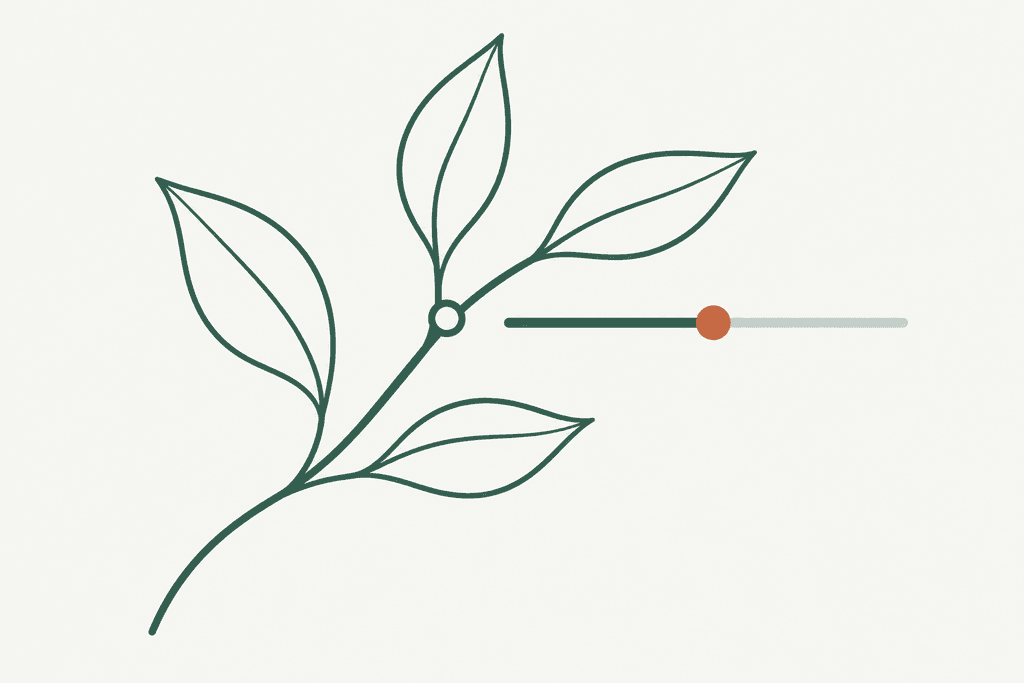
A raster leaf illustration used as the input image.
The traced SVG: thin, clean input lines came back as 94% real strokes.
Avoid these input problems
Most bad traces come from a handful of issues you can spot in a few seconds:
- A tilted photo. Shooting at an angle stretches one side of the drawing and changes its proportions.
- Shadows across the page. Your hand or phone casting a shadow creates a grey gradient the tracer may treat as artwork.
- Construction lines. Light pencil guides you never meant to keep can survive into the final file.
- Tight crops. Cutting off the ends of lines leaves stubs at the edge of the SVG.
- Very thick lines. A chunky marker line is really a filled shape. Tracing it faithfully can give you both edges of the line, the classic "double line" problem.
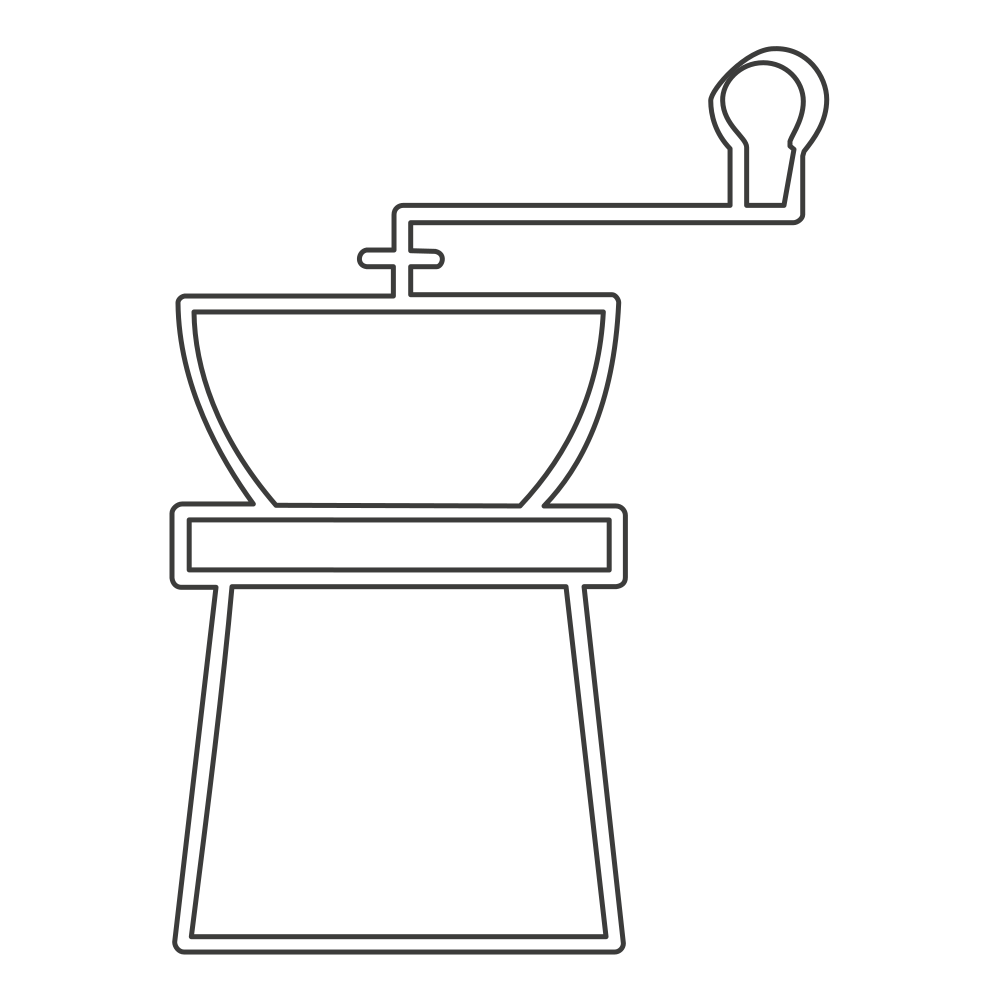
Thick lines traced as strokes can pick up both edges of each line, giving a double outline.
If your drawing is bold on purpose, that is fine for stickers, vinyl or logos. Just know it will behave like shapes, not lines. The post on why cutters and plotters draw double lines explains that effect in more detail.
Prepare the source step by step
Keep your original and work on a copy. Then:
- Capture it flat. Use a scanner if you have one. Otherwise put the page on a table near a window, hold the phone parallel to the paper and shoot from directly above. Many phone note apps have a document scan mode that straightens the page for you.
- Use even light. Avoid a single desk lamp that throws a shadow. Overcast daylight or two light sources from opposite sides work well.
- Crop to the artwork. Remove the desk, the edge of the sketchbook and any unrelated doodles. Leave a small white margin so line ends are not cut off.
- Clean the page. Erase construction lines and smudges on the copy, or paint them out in any photo editor with a white brush.
- Boost contrast gently. Push the background toward white and the lines toward black. Stop before nearby thin lines start merging into one thick mark.
- Ink over pencil if you can. A fine liner (0.3 to 0.5 mm) traced over pencil gives the tracer much cleaner edges than soft graphite.
- Export the right file. Save as PNG, JPG or WebP, 20 MB or smaller. Zoom in after compression to confirm thin lines are still sharp.
Convert, then check the result
Open Sketch to SVG and upload your prepared image. Pick the output type first: Editable lines for artwork you want to restyle, Cut-ready shapes if you are heading to a laser or vinyl cutter. The SVG streams onto the canvas as it is generated; wait for it to finish before judging it.
When it is done, LineSVG labels the result with the share of real strokes, for example "Editable lines · 92%" or "Contains filled shapes · 20% lines". Use that label as your first check, then look at:
- Silhouette and proportions compared with your drawing.
- Connections where stems, parts or contours meet.
- Gaps and doubled marks, especially on your thickest lines.
- Line width. Move the stroke width slider. If the lines thicken, they are real strokes. If nothing changes, those parts are fills.
- Final size. Look at it at the size you will print, cut or display it.
If the result has no strokes at all, a Redraw as lines button appears. It redraws the image as line art instead of tracing it, costs the same credits as a text generation, and works best on thin-line inputs. For a deeper look at why widths sometimes will not change, read why you can't change the line width in your SVG.
Pick the next step for your project
- Illustration or print: adjust stroke width and color, then download SVG or PNG.
- Pen plotter or Cricut pen: turn on Pure lines (for machines) under Editable lines so no filled elements remain.
- Laser cut, vinyl or stickers: use Cut-ready shapes so parts come back closed and connected.
- Keep versions: save edits as a new version in My creations so you can compare options.
Start with your cleanest drawing
A few minutes of cropping and cleanup saves far more time than fixing a messy trace later. Try your sketch in Sketch to SVG, use Image to SVG for a finished raster illustration, or head to Photo to line art when your source is a photo rather than a drawing.
More Posts
Botanical line art for labels, invitations and packaging
Create botanical line art for labels, invitations and packaging as SVG: set stroke color and weight for print, foil single-line leaves, keep branches crisp.

Why can't I change the line width in my SVG?
Can't change the line width in your SVG? The lines are probably filled outlines, not strokes. Learn how to check any file and get line art you can adjust.
Make printable coloring pages with line thickness that fits the age
Make printable coloring pages from a text prompt or drawing, then set the line thickness for toddlers, kids or adults before you print or sell the SVG.