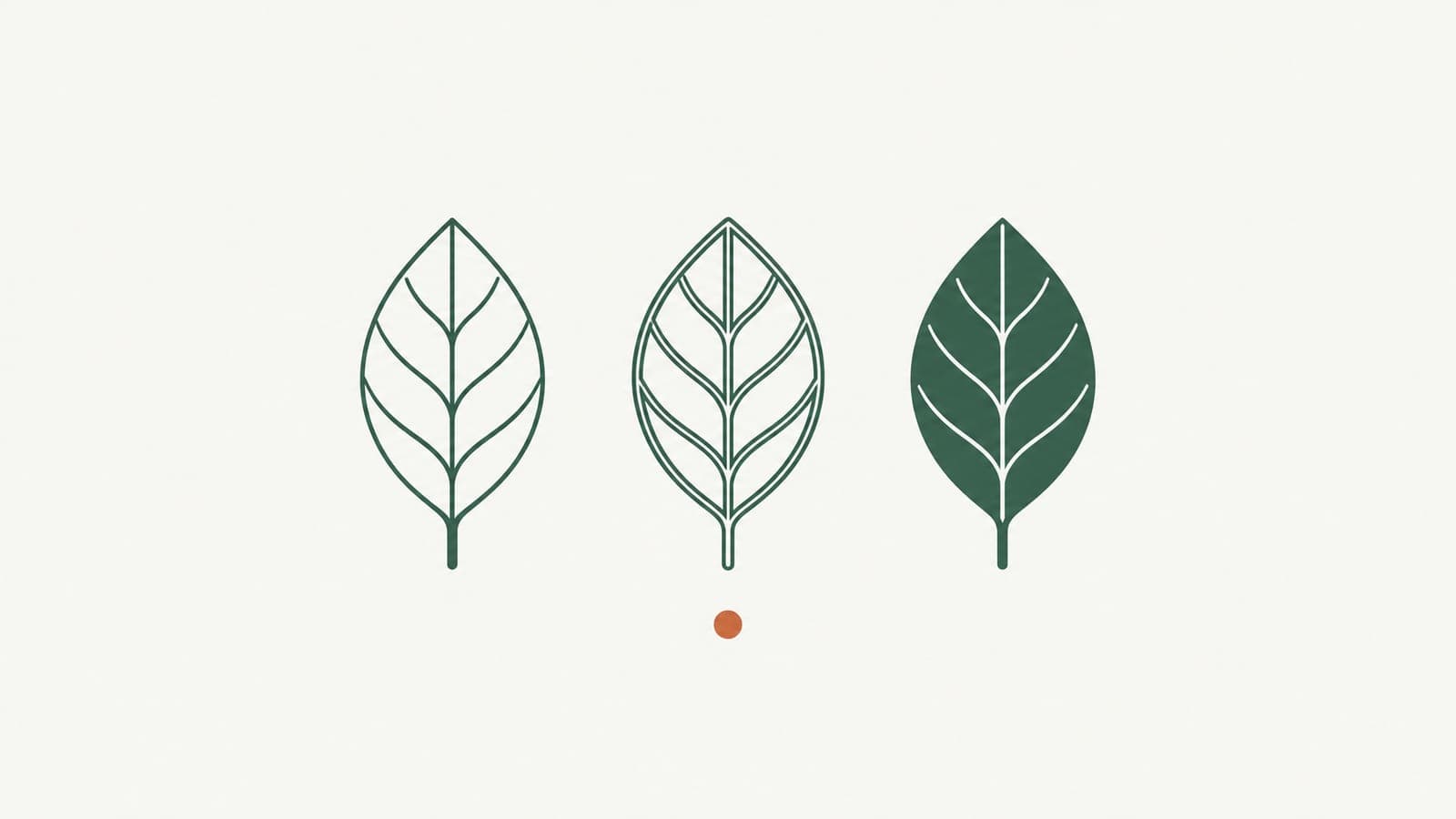
Stroke, outline or fill: the three kinds of line in an SVG
Stroke vs outline vs fill in SVG: what each structure is, which machines and apps need which (plotters, Cricut, lasers, vinyl), and how to pick the right one.
Two SVG files can look identical on screen and behave completely differently once they reach a Cricut, a laser or a pen plotter. One draws a clean line, the other traces around it twice, and a third refuses to draw anything. The difference is stroke vs outline vs fill: three ways an SVG can store what looks like the same line. Once you know which one your file uses, and which one your machine expects, most "why did it do that" moments disappear.
Quick answer: A stroke is a single path with a thickness setting; pens, foil, scoring and embroidery running stitch follow it once. An outline is a closed shape around the edge of a line; cutters and lasers cut along it. A fill is the color inside a closed shape; screens and printers show it, but pen tools and cutters ignore it. Pick the structure for what the machine does, not for how the file looks.
Stroke: a path with a thickness setting
A stroke is a line with a thickness setting. The file stores the route a pen would travel and a few paint instructions: color, width, dashes, how the ends look.
Because the width is only a setting, you can change it at any time without moving the path. That makes strokes the natural format for:
- Illustration and print, where you want to tune line weight for the final size.
- Pen plotters such as AxiDraw, which move a pen along paths. They do not plot fills, as the Evil Mad Scientist forum explains (hatch fills thread).
- Cricut pen, foil and score. Foil transfer only works well with single-line images; filled or outlined art gets drawn around its edges (Hey, Let's Make Stuff).
- Embroidery running stitch and redwork, which use outline stitches without fills (Hatch Embroidery).
- Laser scoring and CNC engraving of line work, where the tool should pass once along the line.
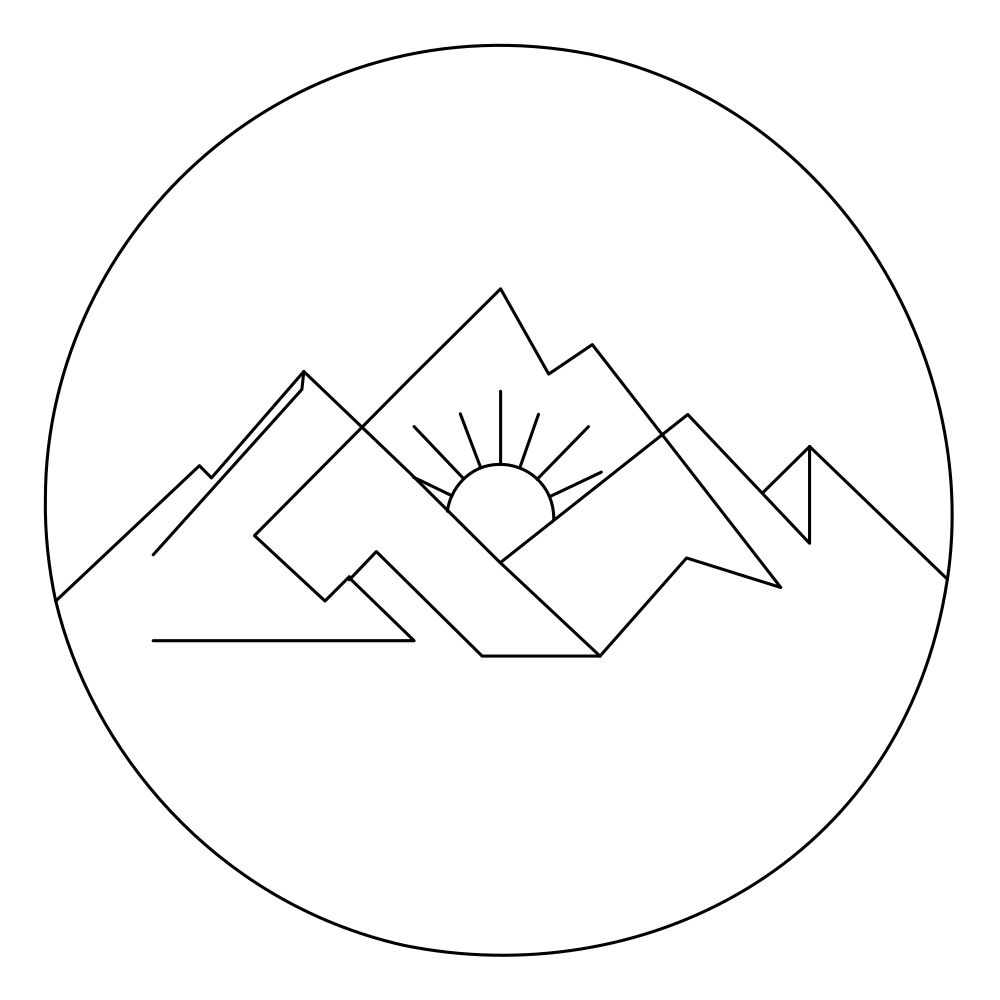 A mountain-and-sun mark as thin real strokes: one path per line, ready for a pen or a score line.
Outline: a closed edge around the visible mark
An outline is what you get when a line is turned into a shape. Instead of one path down the middle, the file stores a closed loop that runs up one side of the mark and back down the other. Tracing software, "Outline Stroke" commands and most downloaded SVGs produce this.
Outlines matter because cutting machines cut along paths. For a vinyl cutter or a laser in cut mode, you want the blade to follow the edge of the finished piece, so strokes are normally converted into closed paths before cutting (StencilIQ guide).
The catch: if you send an outline to a pen or a score operation, the tool follows both edges. A single pen line becomes two parallel lines. That is the most common cause of the problem covered in why your cutter or plotter draws double lines.
Fill: the color inside a closed shape
A fill is paint inside a closed shape. On screen, in a PDF or on a printer, filled shapes look solid and crisp, which is why logos, icons and flat illustrations are usually built from them.
Machines that follow paths treat fills differently:
- Cutters and lasers in cut mode ignore the color and cut the edge of the shape, which is exactly what you want for stickers, vinyl and cut-outs.
- Lasers in fill engrave mode raster across the filled area, so solid regions become engraved patches.
- Pens and foil cannot "draw" a fill at all; they either skip it or trace its edge.
Fills also carry grouping. A flat illustration with five colors can keep each color as its own group, which maps neatly onto layered papercraft, where each color is a separate sheet of card.
 The same mountain mark as a filled cut-out: a white mountain line inside a solid green disc, all one connected shape.
Which structure does your project need?
Use this as a checklist before you generate or download a file.
- Will a pen, foil tip, scoring tool or needle follow the line once? You need strokes, ideally with no fills at all.
- Will a blade or laser cut the line out as a piece? You need closed filled shapes, with every part connected so nothing falls out.
- Will a laser engrave solid areas? Filled areas are right; keep line work that should score as strokes.
- Is it a logo, sticker or icon that must look identical everywhere? Filled shapes are safest.
- Is it layered paper or a flat illustration? Filled color shapes grouped by color.
- Will you keep adjusting line weight in Figma, Illustrator or Inkscape? Strokes, so width stays a setting.
If a project needs two of these, for example a laser piece that is cut out and also scored, prepare both structures and assign them to different operations in your machine software. The trade-offs for lasers are covered in laser cutting vs engraving vs scoring.
How the three structures map to LineSVG output types
LineSVG asks you to pick the structure before generating, so the file comes out ready for the next step instead of needing conversion.
- Editable lines gives real SVG strokes. After generation you can change stroke width, stroke color and dashes with sliders while the path stays put. Tiny solid accents such as dots or berries may remain small fills.
- Pure lines (for machines) is a switch under Editable lines that forbids any filled element. Use it for pen plotters, Cricut pen, foil and score, embroidery running stitch and CNC engraving.
- Cut-ready shapes gives closed filled shapes with connected parts, for laser cutting, vinyl, stickers, logos and icons.
- Color layers gives flat color shapes grouped by color, for layered papercraft and flat illustration.
 Cabin and pine tree as Editable lines.
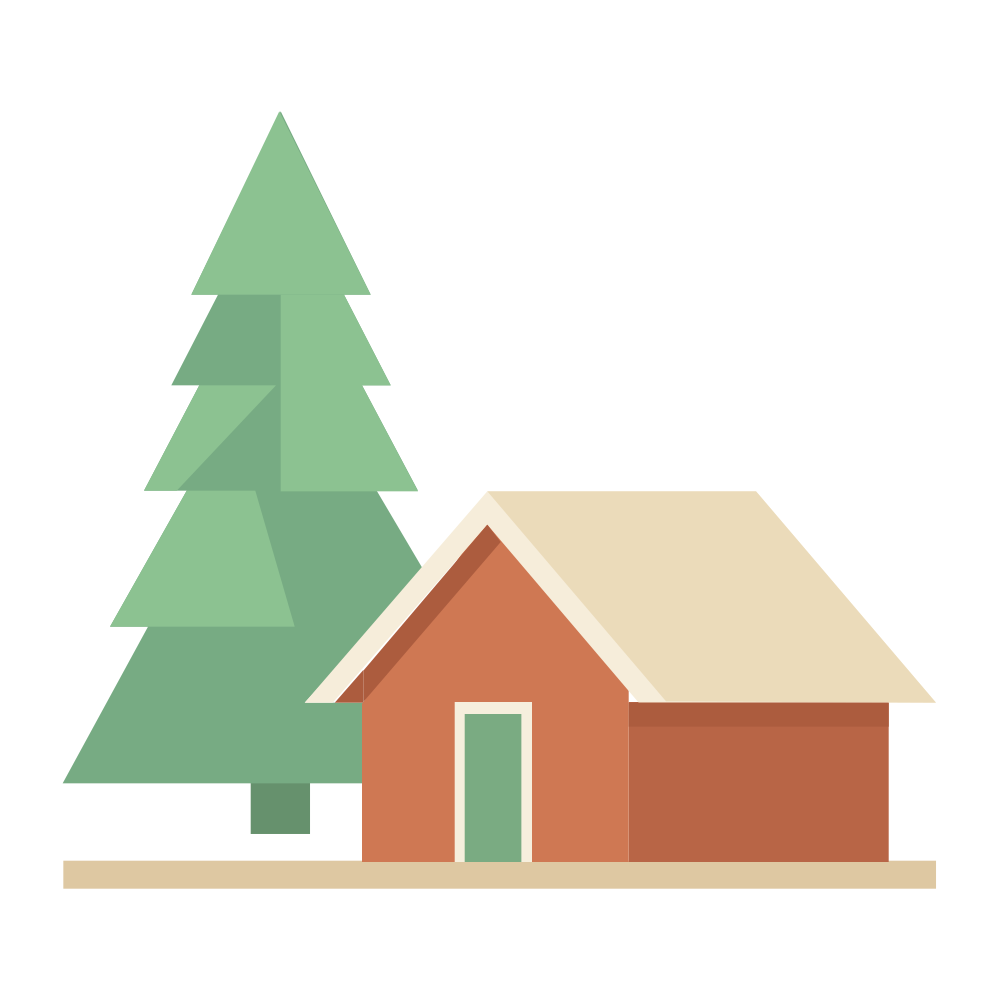 The same scene as Color layers: flat shapes grouped by color.
Every result is labeled with its share of real strokes, such as "Editable lines · 92%" or "Contains filled shapes · 20% lines", so you can confirm the structure before exporting. When you upload an image, LineSVG traces it faithfully: thin line drawings come back as strokes, thick or solid artwork stays filled.
Start with the right structure
Choosing the structure first saves the most time. For pen, foil and score projects, start with single line SVG. For cut pieces, use laser cut SVG. For illustration you want to keep adjusting, the line art generator defaults to Editable lines.
More Posts
Image to SVG: prepare a better source drawing
Image to SVG works best with a clean source. Learn how to photograph, crop and clean a sketch so it traces into real, editable SVG strokes instead of fills.


Laser cutting vs engraving vs scoring: which SVG structure to use
Laser cutting vs engraving vs scoring: learn which SVG structure each operation needs, why scores come out as double lines, and how to prepare cut-ready files.
Tattoo line art: from AI sketch to a stencil with even line weight
Turn tattoo line art from an AI sketch or photo into a clean SVG stencil with even line weight, no black blocks, and strokes you can thicken before printing.