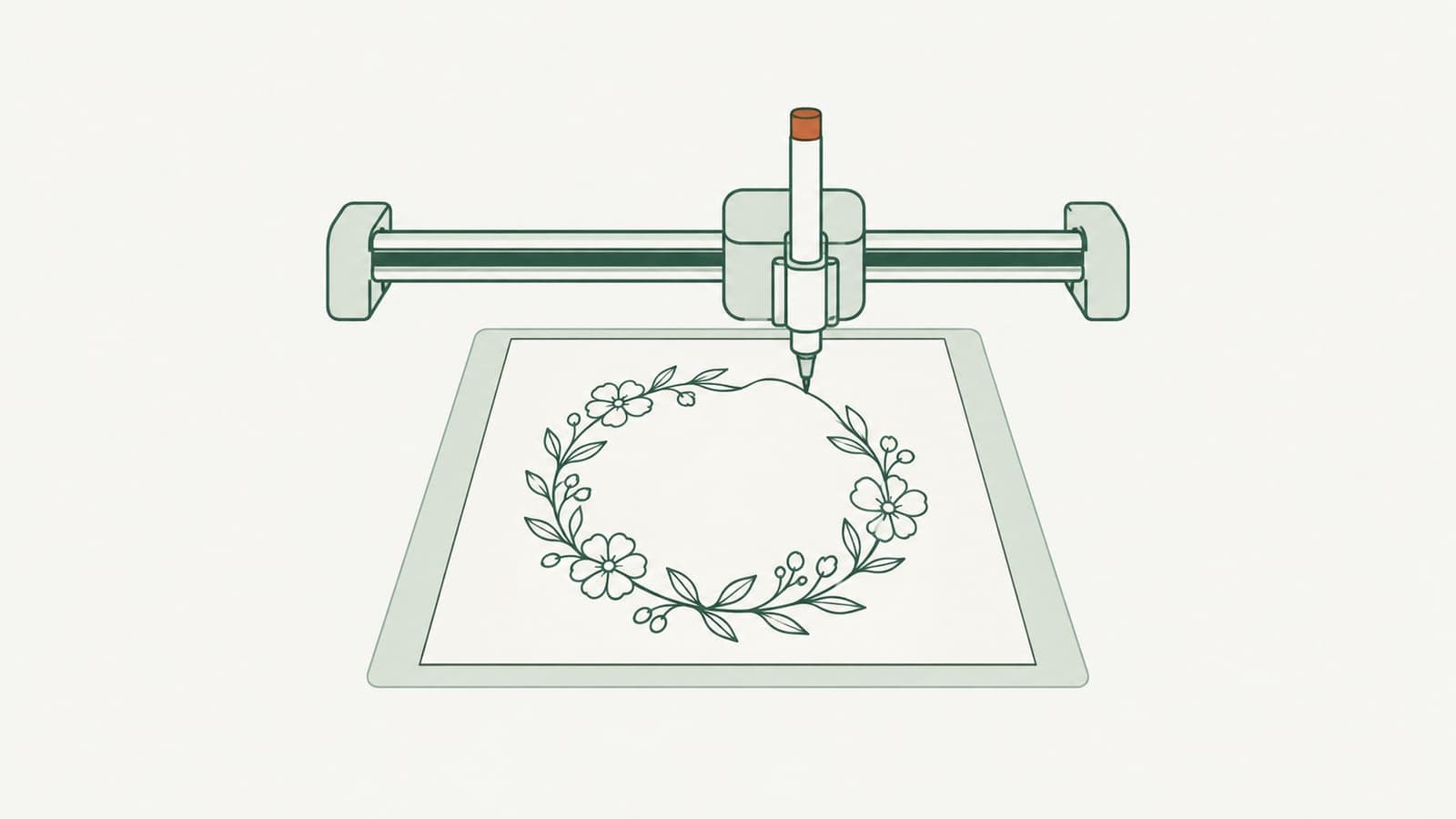
How to make single line SVGs for Cricut pen, foil and score
Make single line SVGs for Cricut pen, foil and score: why outlined files draw double lines, how to generate pure strokes, and the Design Space settings to use.
You load a pretty design into Cricut Design Space, set it to Draw, and the pen traces around every line twice. Or you try Foil Transfer and get a hollow outline where you expected a crisp gold line. The design is not broken; it is just the wrong kind of file. Cricut pens, foil tips and scoring tools follow lines, so they need a single line SVG, not a filled shape.
This guide explains what a single line SVG is, why regular SVGs draw double lines, and how to make one that works for Cricut pen, foil and score.
Quick answer: A single line SVG is made of open strokes with no fills. In LineSVG, choose Editable lines, switch on Pure lines (for machines), and generate. Check that the label shows Editable lines at 100% real strokes, download the SVG, then in Design Space set the layer operation to Draw, Foil or Score.
Why regular SVGs draw double lines on a Cricut
Most SVGs are made for cutting or printing, so every visible line is a filled shape: a thin closed outline painted in. A blade cuts around that outline, which is exactly right for vinyl or paper. A pen does the same thing: it follows the outline, so each line gets drawn along both of its edges.
That is why makers say foil only works with single-line images; this guide to the Cricut Foil Transfer system makes the point, and this explanation of single line draw and foil SVGs shows the difference between outlined and single-line files. Laser users run into the same thing when scoring; see the Glowforge thread on scoring creating double lines.
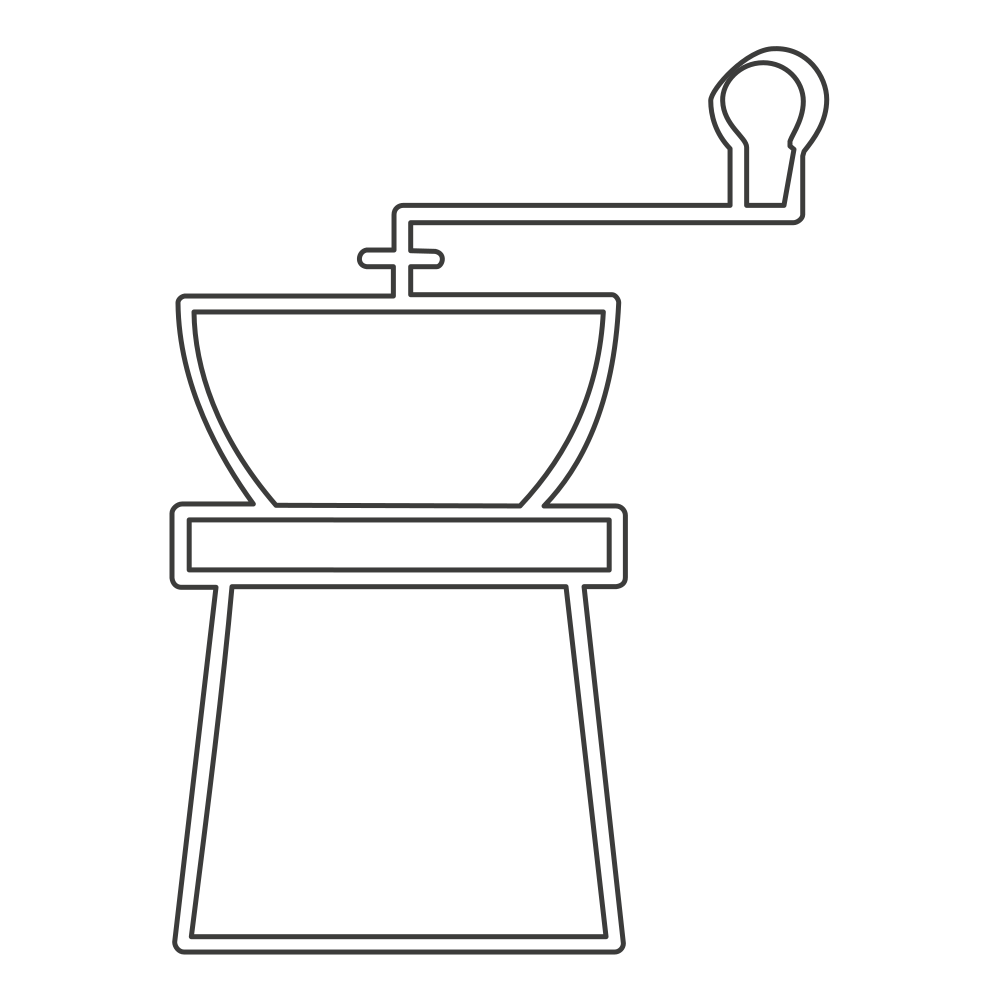
The double line problem: each thick line was traced along both of its edges.
Fixing an outlined file by hand is slow. Illustrator users often ask how to convert a solid filled shape into a single line, and there is no one-click answer. Starting with strokes is far easier. The full story is in why your cutter or plotter draws double lines.
What makes a good single line SVG
A file that draws cleanly with a pen, foil tip or scoring stylus has these traits:
- Only strokes, no fills. Every element is a line, not a painted shape.
- One pass per line. No duplicate paths stacked on top of each other.
- Line weight suited to the tool. A fine-point pen shows detail; foil and score look best with simpler, more open designs.
- Reasonable detail at final size. Very tight hatching or tiny lettering can blur together with a foil tip.
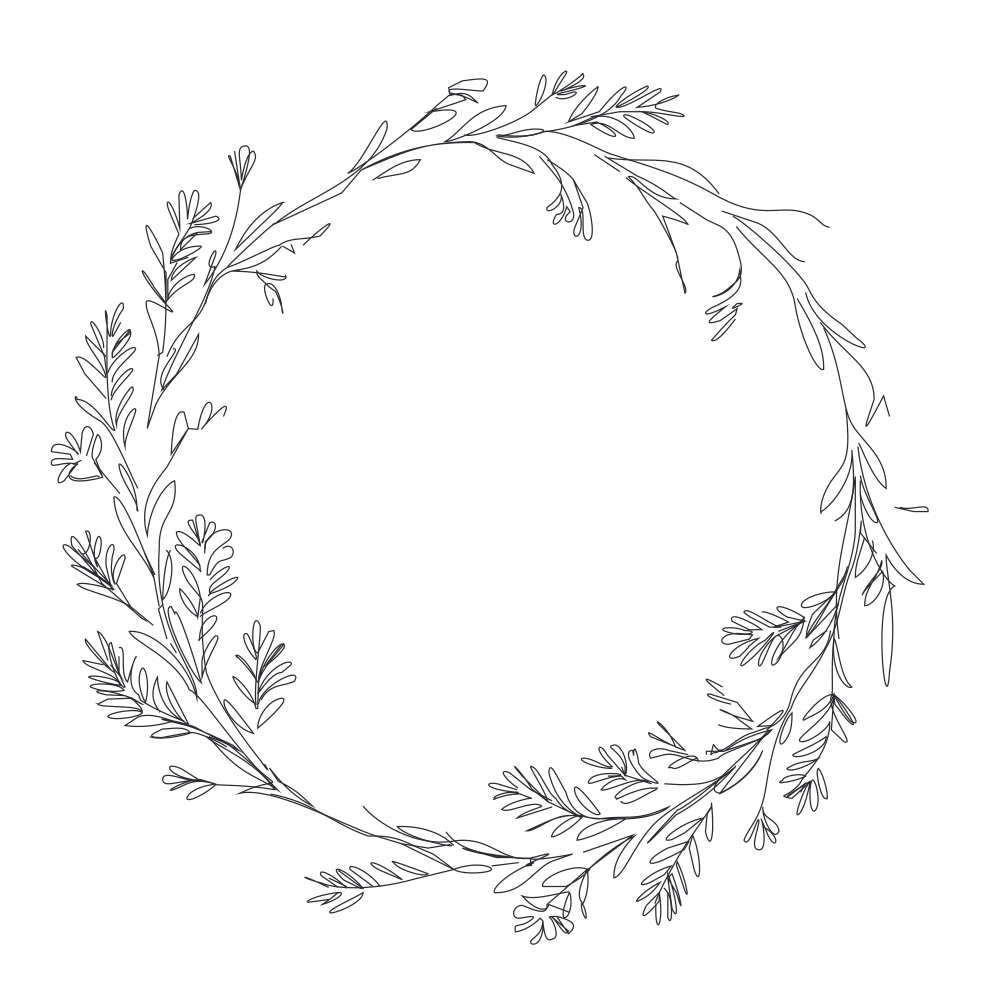
A floral wreath single-line file: 100% strokes, no fills, ready for Draw or Foil.
Make a single line SVG in LineSVG
- Open Single line SVG. You can try the free workspace demo without signing in.
- Choose Editable lines, then turn on the Pure lines (for machines) switch underneath. This forbids any filled element, including small solid dots.
- Describe your design or upload an image. Text works well for things like "floral wreath with leaves and small buds". For uploads (PNG, JPG or WebP up to 20 MB), thin, clean line drawings give the best results.
- Generate and let the SVG stream onto the canvas.
- Check the label. You want a result labeled as all real strokes. If an uploaded image came back with no strokes because the source had thick lines, press Redraw as lines to redraw it as line art.
- Preview the look. Adjust stroke width and color to simulate your pen or foil. This changes how it looks on screen; the paths stay the same.
- Download SVG. Save the edits as a new version in My creations if you want to keep a variant.
Tip: for a first project, keep designs fairly open. Single-stroke flowers, wreaths, simple animals and one line drawings all foil beautifully.
Settings in Cricut Design Space
Once the SVG is uploaded to Design Space:
- Select the layer and open the Operation menu.
- Pick the operation for your tool: Draw for pens and markers, Foil for the Foil Transfer tool, or Score for a scoring stylus or wheel.
- Choose the tip for Foil (fine, medium or bold) and the pen color for Draw.
- Attach to the cut layer if the drawing sits on a shape you are cutting, such as a card, so it stays in position.
- Check the size. Scale the design to your material before sending it to the machine.
Keep Cut for shapes. If you need a separate cut outline, generate it with Laser cut SVG or Cut-ready shapes, which produce closed, connected parts.
Common projects
- Greeting cards and wedding invitations with foil lettering borders and botanical motifs.
- Pen-drawn place cards and gift tags in a fine metallic marker.
- Scored folds and decorative score lines on card stock boxes.
- Coloring sheets drawn by the machine on thick paper.
The same pure-line files also suit pen plotters and running-stitch embroidery, which likewise follow lines rather than filling shapes.
Start your single line file
The fix for double lines is choosing a file made of single strokes from the beginning. Open Single line SVG, turn on Pure lines, and send the result to Draw, Foil or Score. For a portrait-style design, try One line drawing, or read about stroke, outline and fill to understand which file each machine needs.
More Posts
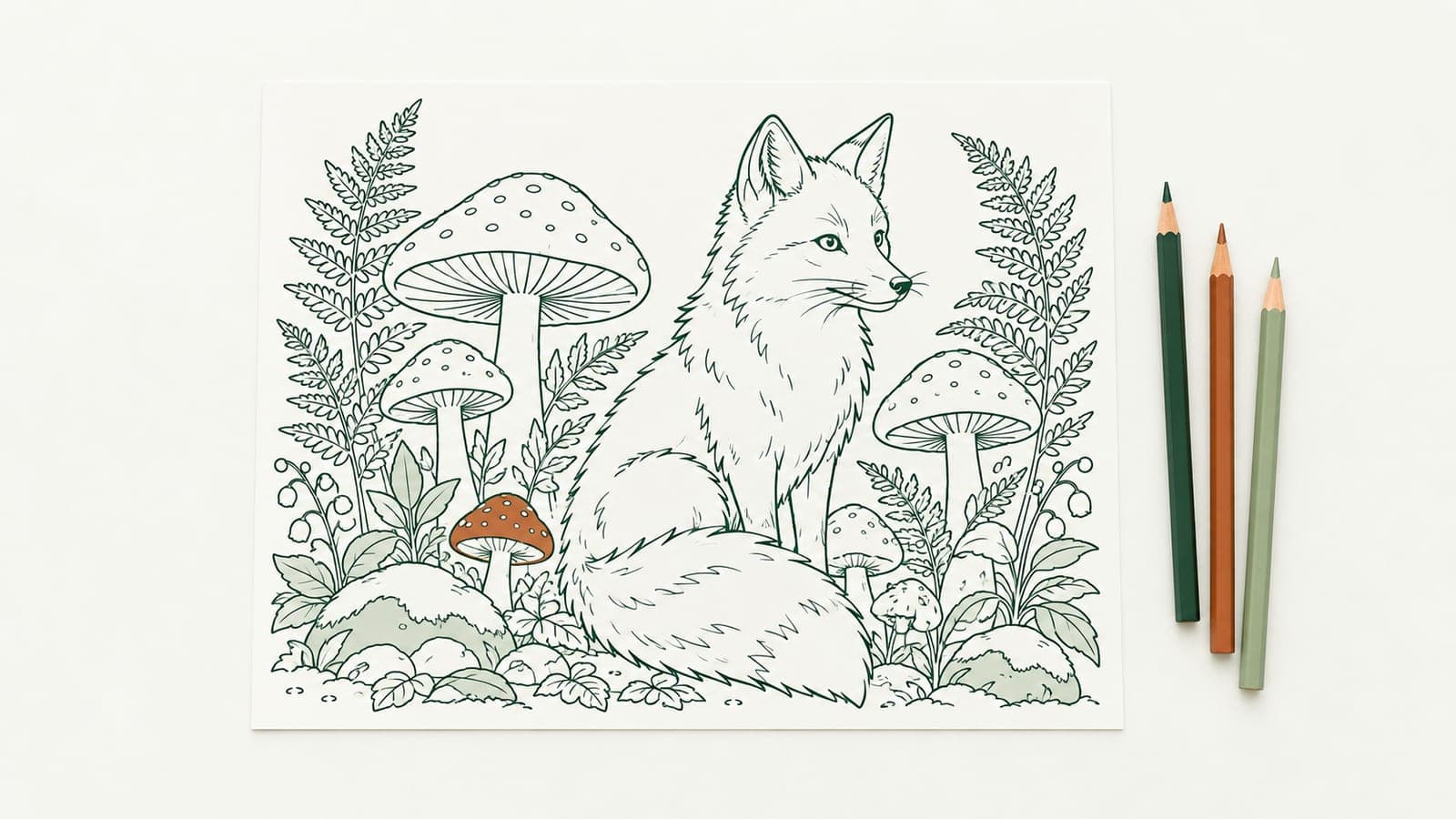
Make printable coloring pages with line thickness that fits the age
Make printable coloring pages from a text prompt or drawing, then set the line thickness for toddlers, kids or adults before you print or sell the SVG.

One line drawings for weddings, pets and couples
Create one line drawings of couples, wedding guests and pets as clean SVG strokes for invitations, signs, foil cards, engraved gifts and framed prints.
Tattoo line art: from AI sketch to a stencil with even line weight
Turn tattoo line art from an AI sketch or photo into a clean SVG stencil with even line weight, no black blocks, and strokes you can thicken before printing.