Signature to SVG: Turn a Handwritten Photo into Clean Vector
Convert a smartphone photo or scan of your handwritten signature into a transparent, single-stroke SVG you can thicken, recolor, animate or laser engrave.
A handwritten signature looks personal until you paste a cropped phone photo onto a dark watermark, a PDF contract, or a laser engraver—and a grey rectangle of notebook paper comes along for the ride. Even when you remove the background in an image editor, a bitmap signature blurs when scaled up, cannot be thickened cleanly for small stamps, and forces pen plotters or lasers to trace double outlines around every letter.
Converting your signature into a single-stroke SVG solves all three problems at once. Want to jump straight in? Upload a photo of your signature to Signature to SVG.
Quick answer: Sign with a dark pen on plain white paper, photograph it straight-on in even light, and upload it to Signature to SVG with Pure lines enabled. Paper shadows and ruled lines are dropped automatically, leaving real SVG centerline strokes whose thickness and color you can adjust—or animate for free in the SVG stroke animator.
Why centerline strokes beat a bitmap cutout or outline trace
Standard vectorizers trace both the left and right edges of an ink line, turning your signature into closed filled shapes. That works fine on a static white letterhead, but breaks down in three common workflows:
- Adjusting pen thickness for size. A signature shrunk onto a 20 mm wax seal or business card needs slightly heavier strokes to stay legible; on a wide hero banner, thinner strokes look more refined. With real SVG
stroke-width, one slider handles both without distorting letterforms. - Cricut pens, plotters and laser engraving. When a signature is an outline shape, a plotter pen or laser follows each edge separately, drawing hollow "railroad tracks" instead of natural handwriting. Pure centerline strokes follow your pen path once—see why cutters draw double lines for a visual breakdown.
- Self-drawing email & video sign-offs. Only stroked paths can reveal smoothly from start to finish with CSS
stroke-dashoffset.
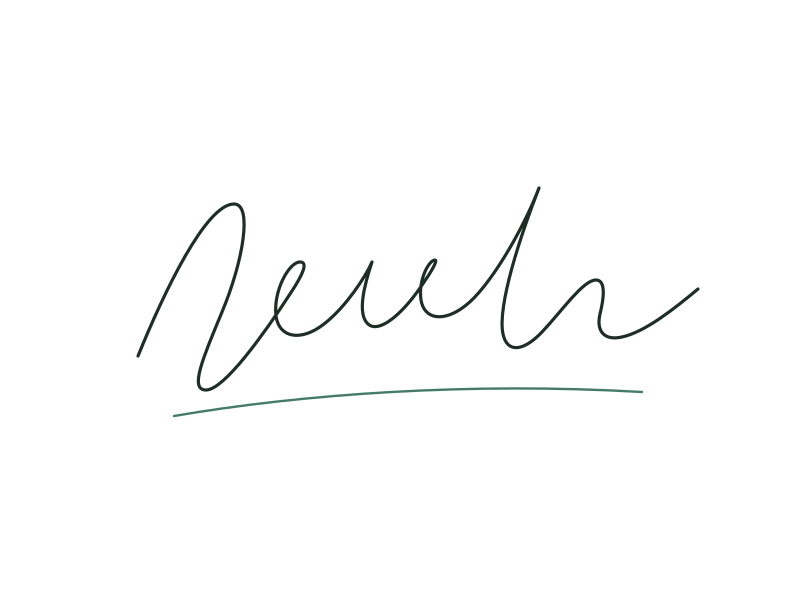
A handwritten signature stored as real centerline strokes: transparent background, adjustable weight and single-path pen flow.
Step-by-step: from paper photo to transparent SVG
- Write slightly larger than normal on unlined white paper. A dark gel pen, rollerball or fine felt-tip gives crisp edges without ink feathering.
- Shoot straight down in even daylight. Step back slightly and zoom in so your phone shadow does not fall across the paper, then crop tightly around the signature.
- Open Signature to SVG and upload. PNG, JPG and WebP up to 20 MB are supported, and Pure lines is turned on by default.
- Strip ruled lines or printed captions if needed. Signing from an existing form with a printed line or name underneath? Click the Ignore text/watermark chip below the upload box before converting, or switch to the Online SVG editor afterwards and type "Remove the horizontal line under the signature".
- Tune stroke weight and ink color. Drag the Stroke slider to match your document weight, or switch color from black to deep navy (
#1e3a5f), gold or pure white for photography watermarks. - Optional: make it sign itself. Click Animate above the canvas, pick Draw on (free, 0 credits), set Left to right at 2.5–3.5 seconds, and export an animated SVG, 1080p MP4 or GIF.
Where a vector signature shines
- PDFs, proposals and Notion docs: Crisp at any zoom level and tiny in file size (typically 2–6 KB).
- Photography & video watermarks: Recolor strokes to white in one click and export a high-res PNG or self-drawing MP4 outro.
- Laser-engraved gifts & leather stamps: Import the pure-line SVG directly into LightBurn or xTool Creative Space to score handwriting onto wood, brass, watches or leather goods.
Ready to digitize yours? Start with Signature to SVG, clean up existing vector files in the Online SVG editor, or turn your finished signature into a live reveal in the SVG stroke animator.
More Posts

Import SVG into Figma, Illustrator, Inkscape & Cricut
How to import SVG into Figma, Illustrator, Inkscape and Cricut Design Space without losing editable strokes. Set Draw, Score, Foil or Cut per layer.

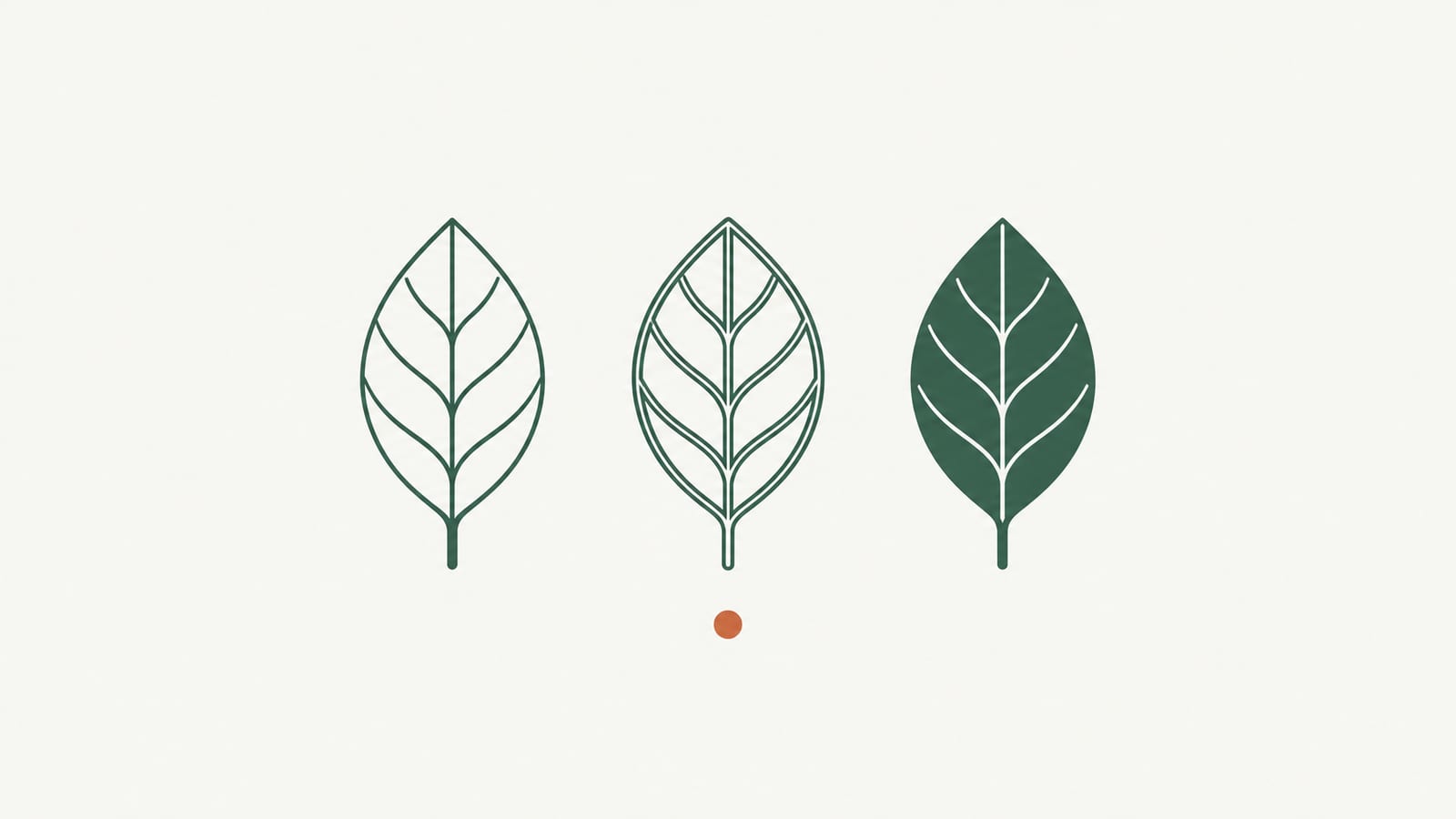
Stroke, outline or fill: the three kinds of line in an SVG
Stroke vs outline vs fill in SVG: what each structure is, which machines and apps need which (plotters, Cricut, lasers, vinyl), and how to pick the right one.
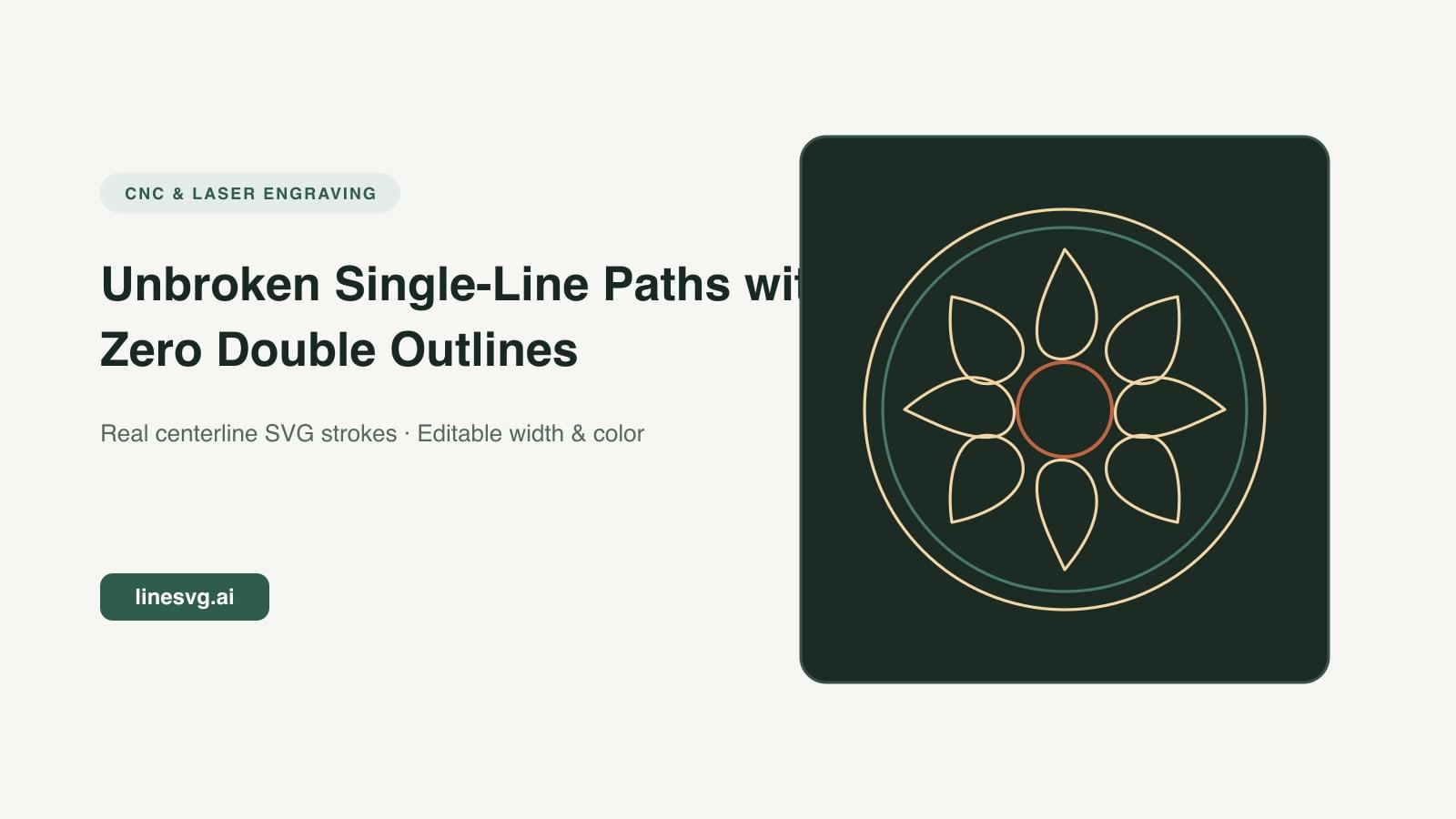
CNC & Laser Engraving SVGs: Convert Patterns to Single Paths
Convert traditional motifs, dark-background reliefs and photos into continuous, unbroken single-line SVG paths with zero double outlines for CNC and lasers.