Are there AI tools for editable SVG line art illustrations? AI image models, generative vector & AI line art tools compared (2026)
Looking for an AI tool that generates editable SVG line art illustrations? Compare Midjourney / DALL·E text-to-image, Adobe Firefly Text to vector / Illustrator generative vector, Recraft, two-step bitmap vectorizers, Figma, and LineSVG across pricing, Chinese UI, export formats, and real limitations.
To generate editable SVG line art illustrations with AI, match the tool to the vector structure your downstream workflow expects: use text-to-bitmap tools like Midjourney or DALL·E when a flat sketch-style raster image is enough for moodboards or slides; choose text-to-vector tools like Adobe Firefly Text to vector, Adobe Illustrator's generative vector features, or Recraft when you want multi-color flat vector illustrations or sticker graphics exported as SVG (their outputs are mostly filled-shape vectors where lines are filled shapes rather than width-adjustable strokes); draw directly in Figma when building a handful of pixel-aligned geometric UI icons with teammates; and use LineSVG (linesvg.ai) when you want to generate from text or redraw photos and sketches into line art, outputting real SVG strokes (stroke) with directly adjustable line width, color, and dashes for Figma, Illustrator, cutting machines, or web workflows. Before picking a tool, clarify whether you need a raster sketch image, closed filled vector shapes, or genuine center-path SVG strokes controlled by stroke-width.
First separate three outputs often lumped together as "AI SVG line art"
When researchers, engineers, technical writers, or product designers ask whether AI can generate editable SVG line art, recommendations frequently mix up three fundamentally different file structures:
- AI-generated raster line drawings (PNG / JPG / WebP bitmaps): General text-to-image models prompted with "minimal black-and-white ink line art on a white background" produce convincing pen-and-ink visuals in seconds. Underneath, however, the file is still a pixel grid—scaling up introduces stair-stepped edges, vector editors see zero selectable paths, and line thickness cannot be adjusted numerically.
- Generative vectors built from closed filled outlines (
fillpolygons): Several AI design platforms and auto-tracing pipelines export genuine.svgfiles by wrapping a thin closed polygon around both outer edges of every dark mark and filling the interior. Filled vectors scale cleanly to any physical dimension and excel at multi-color flat art, die-cut stickers, and laser-cut silhouettes. Because apparent line weight is baked into the outer boundary, however, there is no single parameter to thicken or thin the drawing, and pen plotters or Cricut pens trace both sides of every mark twice. For a visual breakdown, read Stroke, outline or fill: the three kinds of line in an SVG. - Editable SVG stroke illustrations (center
strokepaths): Here the SVG stores a single center path (<path>) paired with painting attributes such asstroke-width,stroke, andstroke-dasharray. Once imported into Figma, Illustrator, Inkscape, or frontend code, changing one number updates line weight across the entire illustration without shifting path geometry; with fills turned off, plotters, Cricut Draw / Foil / Score tools, and laser scoring passes follow each path in a single pass. To diagnose why an existing vector refuses to resize its lines, see Why can't I change the line width in my SVG?.
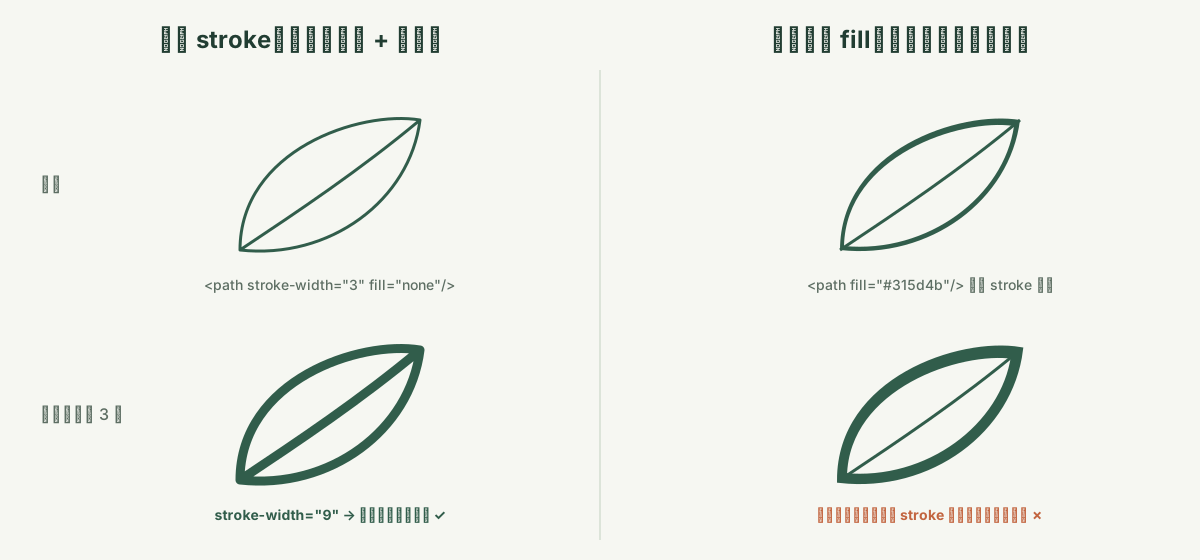 Left: a real SVG stroke (
stroke) whose width stays adjustable after generation. Right: a closed filled outline (fill) whose thickness is locked into its outer boundary.
This guide focuses on generating editable SVG line art from text prompts (and editing existing SVGs). If you already have camera photos, scanned sketches, or PNG artwork to convert, see our companion guide on how to convert a photo or image to SVG line art.
6 AI approaches for generating and editing SVG line art compared
For research figures, hardware documentation, web components, and craft fabrication, here is how the six main options compare across target users, learning curve, pricing model, Chinese interface support, export formats, and honest limitations:
| Tool / workflow | Best for | Learning curve | Pricing | Chinese UI | Output / export formats | Limitations |
|---|---|---|---|---|---|---|
| Midjourney / DALL·E & text-to-bitmap models | Early concept exploration and hand-drawn textures when flat pixel images suffice | Low–Medium | Paid subscription or credit tiers (some include trial credits) | Partial (varies by platform) | PNG, JPG, WebP (raster bitmaps) | Outputs bitmaps rather than vector paths; no direct stroke-width control, and vector layout or cutting requires a separate tracing step |
| Adobe Firefly Text to vector / Illustrator generative vector | Generating vector graphics from text prompts, downloading SVG, and refining anchor points in Illustrator | Low–High | Paid subscription or credit tiers (some include trial credits) | Yes for Illustrator; Firefly varies by region | SVG (editable in Illustrator; exports AI, PDF, EPS, etc.) | Outputs are mostly filled-shape vectors where lines are filled shapes rather than width-adjustable strokes |
| Recraft & vector-capable AI design tools | Design and content teams generating cohesive flat vector illustrations, marketing visuals, or colored icon sets from prompts | Low | Free tier + paid subscriptions | No (primarily English UI) | SVG, PNG, JPG, etc. (direct SVG in vector modes) | Exported SVGs are primarily assembled from closed filled shapes (fill), making global stroke-width tuning or single-line plotting impractical |
| AI image generation + Vectorizer-class tools / Inkscape | Users who prefer composing scenes in a favorite image model first, then tracing black-and-white outputs into vectors | Medium | Commercial online vectorizers: paid subscription or pay-per-use; Inkscape: free and open source | Online tools: mostly English; Inkscape: Yes | SVG, PDF, EPS, DXF, PNG, etc. | Two-step pipeline; anti-aliased gray edges and soft shadows in AI bitmaps often trace into double outlines or stray speckles without manual cleanup |
| Figma (vector canvas & plugin ecosystem) | Frontend, product, and documentation teams crafting grid-aligned UI line icons, architecture diagrams, or collaborative layouts | Low–Medium | Free starter plan + paid team subscriptions | Yes | SVG, PNG, JPG, PDF | Built primarily as a collaborative interface and vector editor rather than a native one-click text-to-stroke generator for organic illustrations; hand-drawing complex subjects takes time |
| LineSVG | Generating from text or redrawing photos and sketches into line art as real SVG strokes (stroke) with directly adjustable line width, color, and dashes for Figma, Illustrator, cutters, or web workflows | Low | Free workspace demo without login; 10 signup credits (covers 1 run, no daily free refresh); subscriptions as low as $20/month billed yearly; one-time credit packs from $10 | Yes | Primary output SVG; exports SVG and PNG (animations export SVG, plus MP4 / GIF where browser-supported) | Not pixel-perfect—image conversions reinterpret pictures so proportions and small details can shift; some solid or gradient regions stay as fills; SVG editor max 2 MB upload (no AI edits over 200,000 characters) |
In day-to-day work, choosing between them comes down to three practical rules:
- Multi-color flat vector scenes or die-cut stickers exported as SVG: Pick Adobe Firefly Text to vector, Adobe Illustrator's generative vector features, or Recraft, where closed color regions render identically across viewers.
- A small set of strict pixel-grid geometric icons: Draw directly with the Pen tool and boolean operations in Figma for minimal anchor points.
- Illustrative line art or photo/sketch redraws whose line width, color, dash pattern, or single-line toolpath must stay directly adjustable: Output real strokes (
stroke) under Editable lines in LineSVG's AI line art generator or Photo to line art.
How to choose by scenario
1. Research paper schematics, technical reports, and hardware manuals
Researchers and documentation engineers routinely place apparatus illustrations, botanical specimens, anatomical outlines, or assembly gestures into both narrow two-column manuscripts and large conference posters. Bitmaps blur when enlarged, while filled-outline SVGs become hair-thin when shrunk to a single column and overly heavy when scaled up. For strict geometric block diagrams or standard circuit schematics, draw manually in Figma or Inkscape. For organic specimens, laboratory glassware, or explanatory objects, generate adjustable strokes in LineSVG's AI line art generator or Botanical line art generator, drop the SVG into your layout software, and standardize stroke weight across every figure panel in seconds.
2. Web empty-state illustrations, custom UI line icons, and path animations
Frontend empty states, feature spot illustrations, and scroll-triggered stroke-dashoffset draw-on animations all depend on clean <path> elements with genuine stroke attributes—closed filled polygons cannot animate smoothly as a single pen nib drawing itself onto the page. Standard interface actions are fastest with open-source icon sets customized in Figma. When you need domain-specific spot illustrations or matching outline icons, draft them in LineSVG's AI line art generator or Line icon generator, verify the real-stroke share badge, and copy the clean markup—or build self-drawing motion directly in the workspace (see Animated SVG line drawings: one-click draw-on effects).
3. Laser cutting, Cricut pen & foil projects, and pen plotters
Digital fabrication tools care about path topology rather than screen appearance. Cutting wood ornaments on a laser or vinyl decals on a blade cutter requires connected, closed filled shapes—use Illustrator, Recraft, or LineSVG's Cut-ready shapes output and Laser cut SVG generator (compare all three structures in Editable lines, Cut-ready shapes and Color layers). Conversely, pen plotters such as AxiDraw, Cricut Draw / Foil / Score attachments, and single-pass laser scoring require fill-free single-path strokes; feeding them outlined shapes causes the machine to trace both edges of every line (explained in Why your cutter or plotter draws double lines). Enable Editable lines + Pure lines (for machines) in LineSVG, or start directly in Single line SVG for Cricut.
4. Restyling or editing existing SVGs from your team's archive
Often your team already has an SVG exported from Illustrator, Figma, Inkscape, or a charting library and simply needs to unify stroke weights, swap brand colors, or delete an outdated callout label. Upload any .svg up to 2 MB to LineSVG's Online SVG editor: previewing and adjusting stroke width, color, and dashes are completely free, while targeted structural changes—deleting a component, recoloring fills, or renaming labels—can be described in plain language so AI rewrites the SVG source in place without disturbing untouched paths. For heavy, complex vector files above 2 MB or roughly 200,000 characters, edit locally in Illustrator or Inkscape.
Worked examples: two real LineSVG generation and editing workflows
Below are two real prompts and outputs from the LineSVG workspace illustrating how text-to-stroke generation connects to downstream design and fabrication tools.
Example 1: One sentence → Editable SVG scene illustration with a color accent
When creating an editorial spot or web hero illustration that needs to adapt across light backgrounds and print sizes, keep the prompt focused on one clear subject, continuous linework, and at most one accent color. In the AI line art generator with Editable lines selected by default, enter:
A lighthouse on a rocky shore with gentle rolling waves and two seabirds, elegant continuous linework, one terracotta accent on the lantern.
Running generation after signing in (10 credits by default) produces this real SVG:
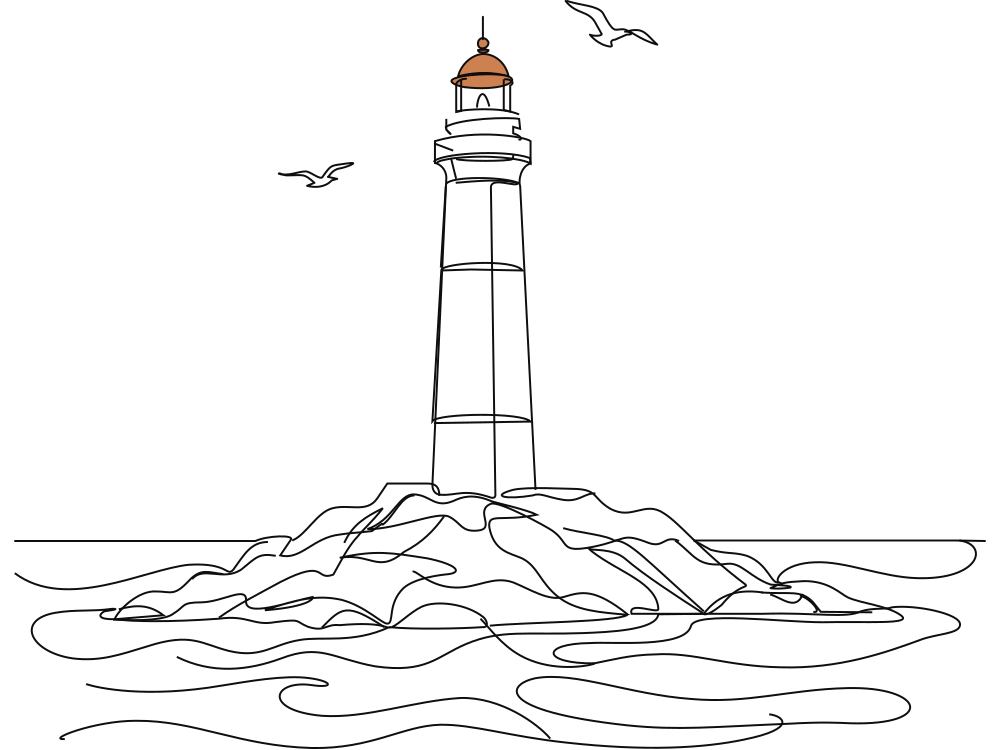 Generated under Editable lines: rocks, tower, waves, and seabirds are real SVG strokes, while the lantern keeps a small terracotta accent.
Every result displays a badge indicating the exact percentage of real strokes. Dragging the Stroke width, Color, and Dashed controls updates the underlying SVG attributes live before you download .svg, export .png, or copy raw code.
Example 2: Consistent-weight apparatus / UI icon → In-place AI refinement
When building instructional manuals or product icon sets where uniform line weight matters, open the Line icon generator and prompt:
A coffee grinder with a hand crank, simple and recognizable, consistent thin lines.
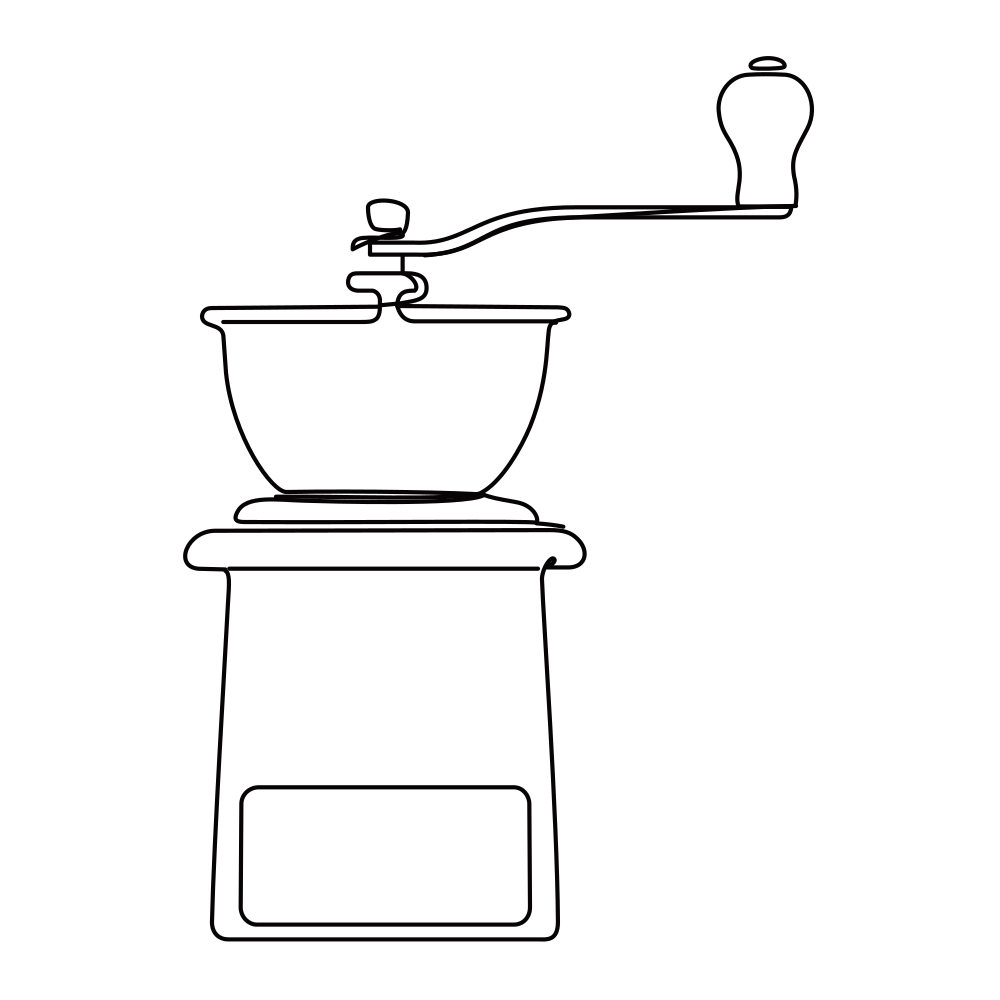 Generated as 100% real strokes, allowing you to rescale the icon for narrow sidebars or print callouts and reset exact stroke weight in one click.
From here, handoff takes two quick steps:
- If you want to remove a detail (such as deleting the handle) or recolor specific strokes, open the file in the Online SVG editor and type a one-sentence AI edit (10 credits per AI edit; slider restyling is free).
- Drop the exported
.svginto Figma, Illustrator, Inkscape, or Cricut Design Space for layout or machine setup—see Importing SVGs into Figma, Illustrator, Inkscape and Cricut for app-specific layer settings.
5 common mistakes when generating SVG line art with AI
- Wrapping a white-background PNG inside
<svg><image>and calling it vector: Despite the.svgfile extension, an embedded bitmap blurs when zoomed and exposes zero<path>nodes to editors or plotters. - Trusting the
.svgextension without checkingstrokeversusfill: Increasing stroke width on closed filled outlines only paints an outer halo around every mark and causes plotters or foil tips to run double tracks. - Stuffing prompts with cross-hatching, realistic shading, and soft gradients: Heavy tonal rendering pushes models toward solid filled patches and fragmented marks; specify "clean outline, consistent line weight, no shading" when you want responsive strokes.
- Using generative AI for strict mechanical tolerances or standardized symbols: AI line art excels at visual communication and illustration, not millimeter-accurate hole spacing, ISO circuit symbols, or clinical anatomy—always verify technical diagrams manually or draft precision parts in CAD.
- Running "Outline Stroke" on your only master file: Converting strokes to closed paths for laser cutting or print plates permanently destroys
stroke-widtheditability; always archive an editable stroke master separately.
Frequently asked questions (FAQ)
What is the best free tool for creating editable SVG line art?
On desktop, Inkscape (Windows, macOS, Linux) is the top zero-cost choice—free, open source, watermark-free, with full Pen path editing and built-in centerline bitmap tracing. For drawing a small set of simple geometric line icons in the browser, Figma's free starter tier works well; for flat color AI vectors, Recraft offers a free tier (English interface, primarily closed fill shapes). In LineSVG, you can try the interactive workspace demo without signing in, and new accounts receive 10 welcome credits (valid for 30 days; at 10 credits per run, enough for 1 free generation or conversion).
Why can't I change the line width of AI-generated SVGs in Figma or Illustrator?
Because most generative vector tools and auto-tracers output closed filled outlines (fill) around the perimeter of each mark rather than single center strokes (stroke). Filled shapes have no line-width parameter, so adding a stroke simply draws a border around the shape's exterior. Switch to Outline view (View > Outline) to check in seconds, or follow Why can't I change the line width in my SVG?.
Should I use text-to-line-art or image-to-SVG when I already have a photo or sketch?
Use the AI line art generator when starting from a blank page with a written concept. When you already have a PNG, JPG, or WebP reference up to 20 MB whose subject and composition you want to preserve, upload it to Photo to line art (using Redraw as lines if heavy shadows trace as dark blobs). Keep in mind that LineSVG reinterprets images into clean vector strokes rather than tracing every pixel mechanically; see How to convert a photo or image to SVG line art for a full comparison.
Can AI-generated SVG line art go straight into academic papers, patents, or frontend code?
For web interfaces and product docs, clean exported SVGs can be inlined or imported directly after checking the stroke share badge and tidying unused groups. For peer-reviewed manuscripts or patent drawings, authors must manually verify structural accuracy, proportions, and callout terminology, and check each publisher's or patent office's current disclosure policy on AI-assisted figures. Also note that LineSVG's Single line SVG for Cricut generates custom single-line artwork SVGs, not installable TTF / OTF font files.
How does LineSVG pricing work, and what are its file and feature limits?
By default, each text generation, image conversion, or in-place AI edit uses 10 credits (automatically refunded if a task fails), while previewing files and adjusting stroke width, color, and dashes in the workspace or Online SVG editor are free. Signing up grants 10 welcome credits (enough for 1 run, valid 30 days, with no daily or monthly free credit refresh). Paid options include subscriptions as low as $20/month billed yearly (Basic $240/year or $50/month for 500 credits/month; Pro $480/year or $100/month for 1,500 credits/month; Enterprise $960/year or $200/month for 4,000 credits/month), one-time credit packs from $10 (100 credits $10, 300 credits $30, 500 credits $50, 1,500 credits $100, non-renewing), and a $1,999 Lifetime plan (5,000 credits issued monthly), with each credit grant valid for 30 days—see pricing. Key limits: raster uploads accept PNG, JPG, or WebP up to 20 MB; the SVG editor accepts .svg files up to 2 MB, removes embedded bitmaps and certain stylesheets on upload, and disables AI edits above roughly 200,000 characters; and some small solid accents or gradients intentionally remain fills.
Author

More Posts
Why can't I change the line width in my SVG?
Can't change the line width in your SVG? The lines are probably filled outlines, not strokes. Learn how to check any file and get line art you can adjust.
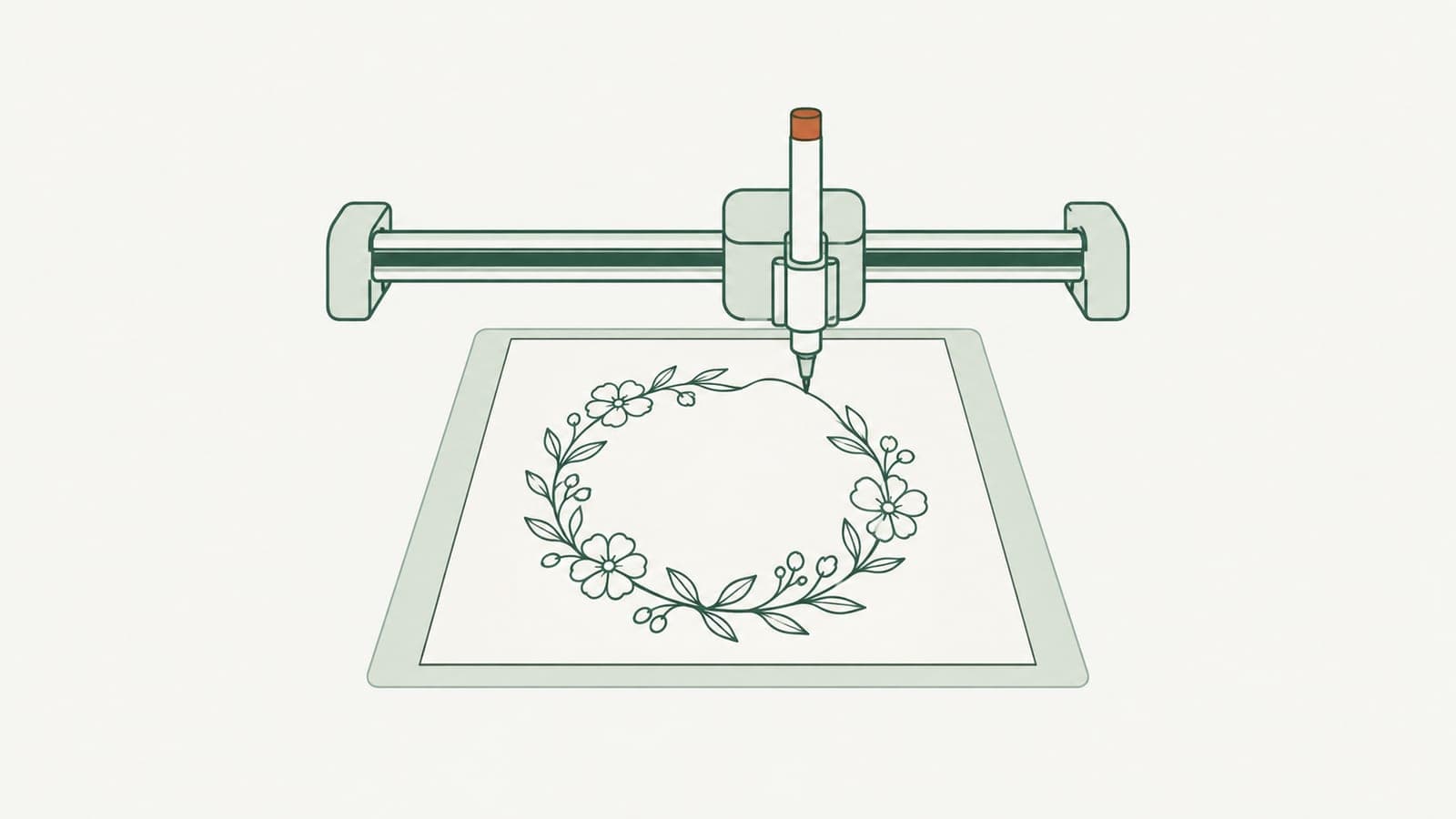
How to make single line SVGs for Cricut pen, foil and score
Make single line SVGs for Cricut pen, foil and score: why outlined files draw double lines, how to generate pure strokes, and the Design Space settings to use.
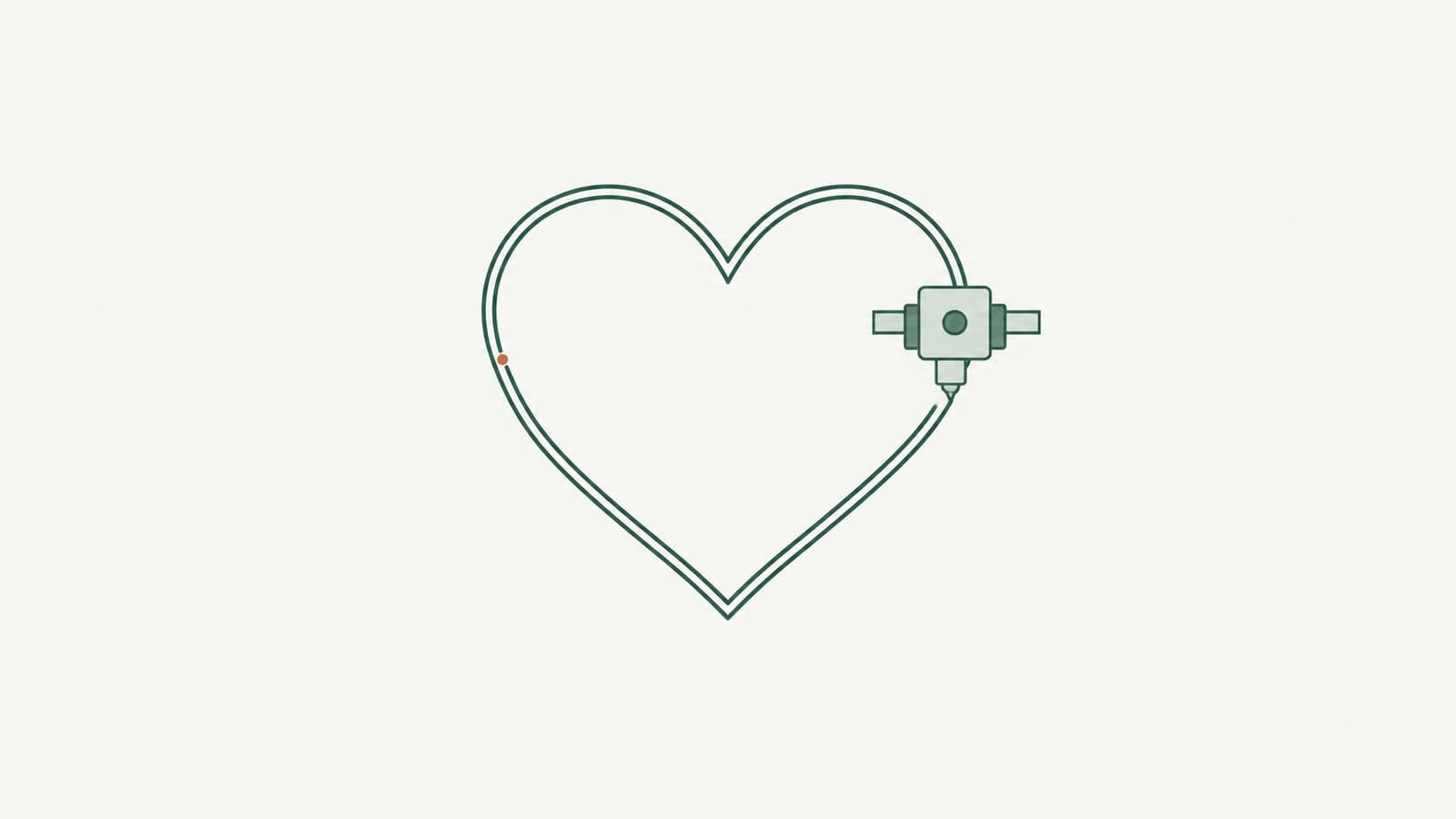
Why your cutter or plotter draws double lines (and how to fix it)
Why does your cutter or plotter draw double lines? Usually the SVG is an outline trace or has duplicate paths. Learn to diagnose it and use single-line files.