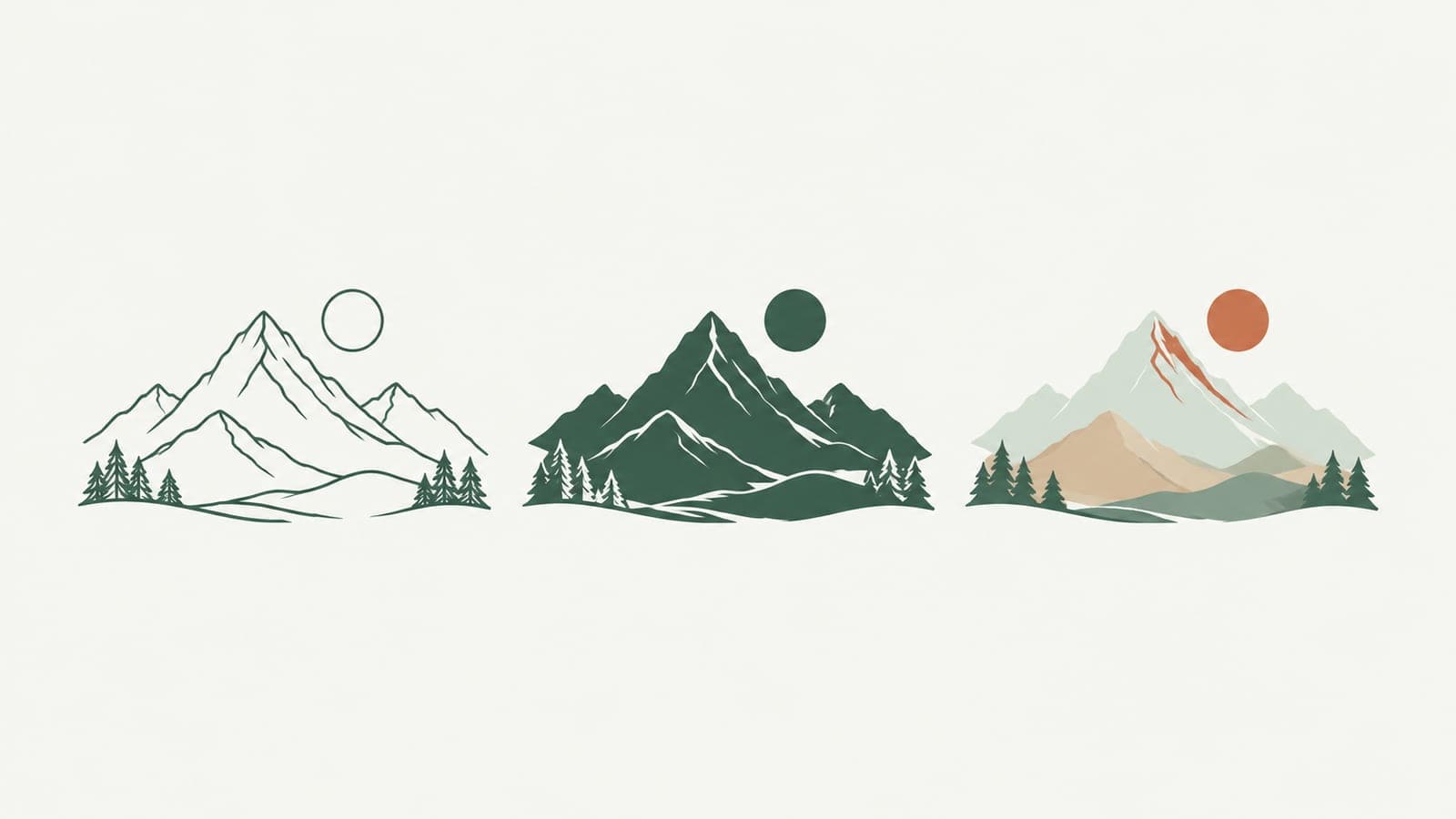
New: choose editable lines, cut-ready shapes or color layers
LineSVG now lets you choose editable lines, cut-ready shapes or color layers before generating, so each SVG output type matches the machine or app you use next.
A pen plotter, a vinyl cutter and a papercraft project all start with "an SVG", but they need very different files inside. Until now you had to generate a drawing and then convert it. Starting today, you choose editable lines, cut-ready shapes or color layers before you generate, and LineSVG builds the file in that structure from the first line.
What changed
The workspace now asks for an output type before you generate. There are three choices, plus one switch.
- Editable lines produces real SVG strokes. A stroke is a line with a thickness setting, so after generation you can change stroke width, stroke color and dashes with sliders while the path stays exactly where it is. Tiny solid accents such as dots or berries may remain small fills.
- Pure lines (for machines) is a switch under Editable lines that forbids any filled element. It is meant for pen plotters, Cricut pen, foil and score, embroidery running stitch and CNC engraving.
- Cut-ready shapes produces closed filled shapes with connected parts, for laser cutting, vinyl, stickers, logos and icons.
- Color layers produces flat color shapes grouped by color, for layered papercraft and flat illustration.
 Color layers: a cabin scene as flat shapes grouped by color, one group per color.
Every result is also labeled with its share of real strokes, for example "Editable lines · 92%" or "Contains filled shapes · 20% lines". You can see at a glance whether the width slider will reach the whole drawing.
Why we added it
The most common question we hear is some version of "why can't I change the line width?" The answer is almost always that the file is made of filled outlines instead of strokes, which we explain in why you can't change the line width in your SVG.
The opposite problem is just as common. Someone wants to cut a sticker and gets thin strokes that the cutter cannot turn into a piece, or wants to foil a design and gets outlines that the foil tip follows twice. There is no single structure that works for everyone, so we stopped guessing and let you choose. The three structures and the machines that need them are covered in stroke, outline or fill.
How to use it
- Open the workspace from any tool page. The free demo works without signing in.
- Pick the output type for what happens next: Editable lines for drawing and print, Cut-ready shapes for cutting, Color layers for layered or flat color work.
- Turn on Pure lines if a machine will draw the lines, so no fills sneak in.
- Type a description or upload an image (PNG, JPG or WebP up to 20 MB) and generate. The SVG streams onto the canvas as it is drawn. Credits for the generation are shown next to the button.
- Check the stroke label, then adjust width, color and dashes if you chose Editable lines.
- Export: download SVG, download PNG, copy the SVG code, or save your edits as a new version in My creations.
When you upload an image, LineSVG traces it faithfully: thin line drawings come back as strokes, thick or solid artwork stays filled. If an upload comes back with no strokes, the Redraw as lines button redraws it as line art, at the same credit cost as a text generation. It works best on inputs with thin lines.
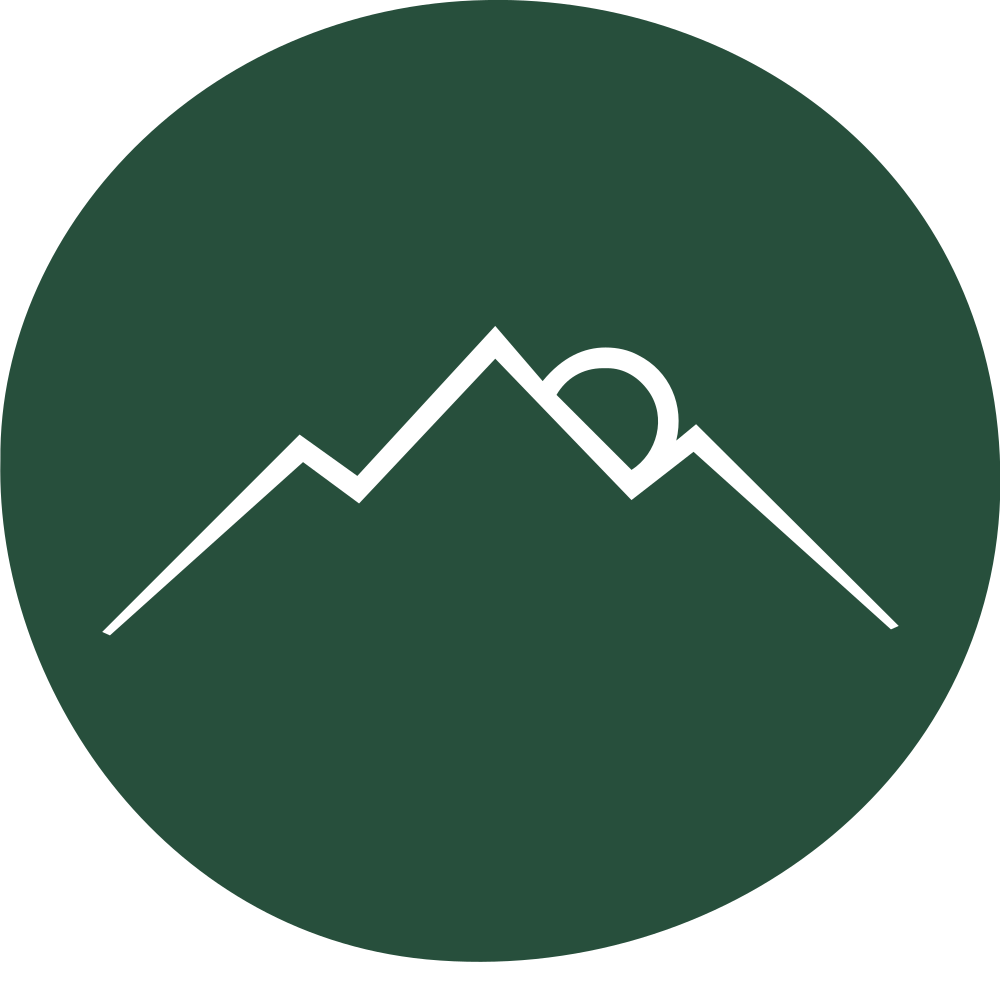 Cut-ready shapes: a mountain mark as one connected filled shape, ready for a cut layer.
Which tools default to which output type
Each tool page opens the workspace with a sensible default, and you can switch at any time.
- Editable lines: line art generator, photo to line art, image to SVG, sketch to SVG, botanical line art, coloring page generator, tattoo line art and line icon generator.
- Editable lines with Pure lines on: one line drawing and single line SVG for Cricut pen, foil and score.
- Cut-ready shapes: laser cut SVG and logo to vector.
- Color layers: not a tool default; pick it in the workspace whenever you want flat color shapes.
Try it
Pick a tool that matches your project and the right structure is already selected. Start with the line art generator for drawings you want to keep adjusting, or laser cut SVG for pieces you want to cut out.
More Posts
How to make single line SVGs for Cricut pen, foil and score
Make single line SVGs for Cricut pen, foil and score: why outlined files draw double lines, how to generate pure strokes, and the Design Space settings to use.

Tattoo line art: from AI sketch to a stencil with even line weight
Turn tattoo line art from an AI sketch or photo into a clean SVG stencil with even line weight, no black blocks, and strokes you can thicken before printing.
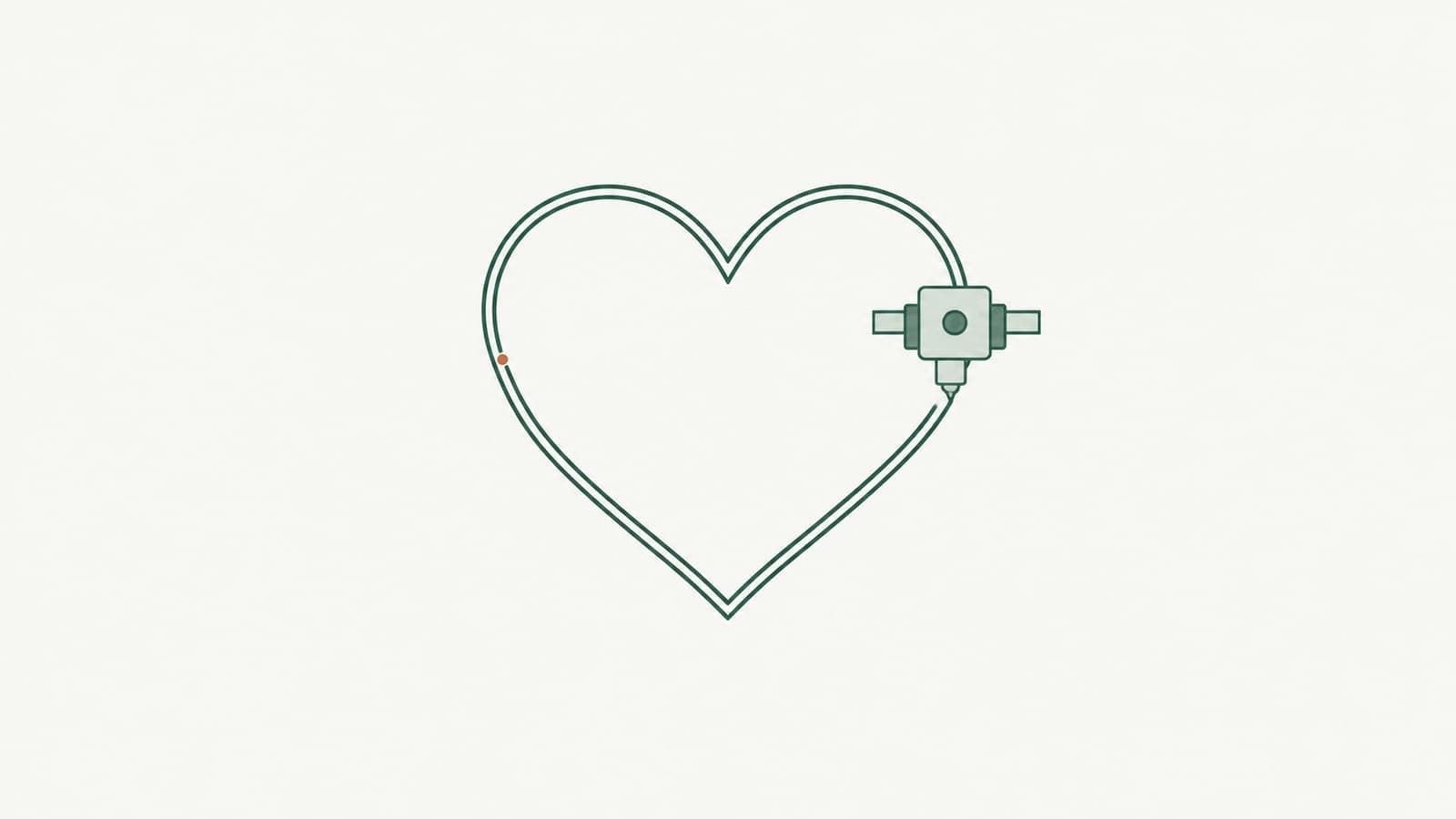
Why your cutter or plotter draws double lines (and how to fix it)
Why does your cutter or plotter draw double lines? Usually the SVG is an outline trace or has duplicate paths. Learn to diagnose it and use single-line files.