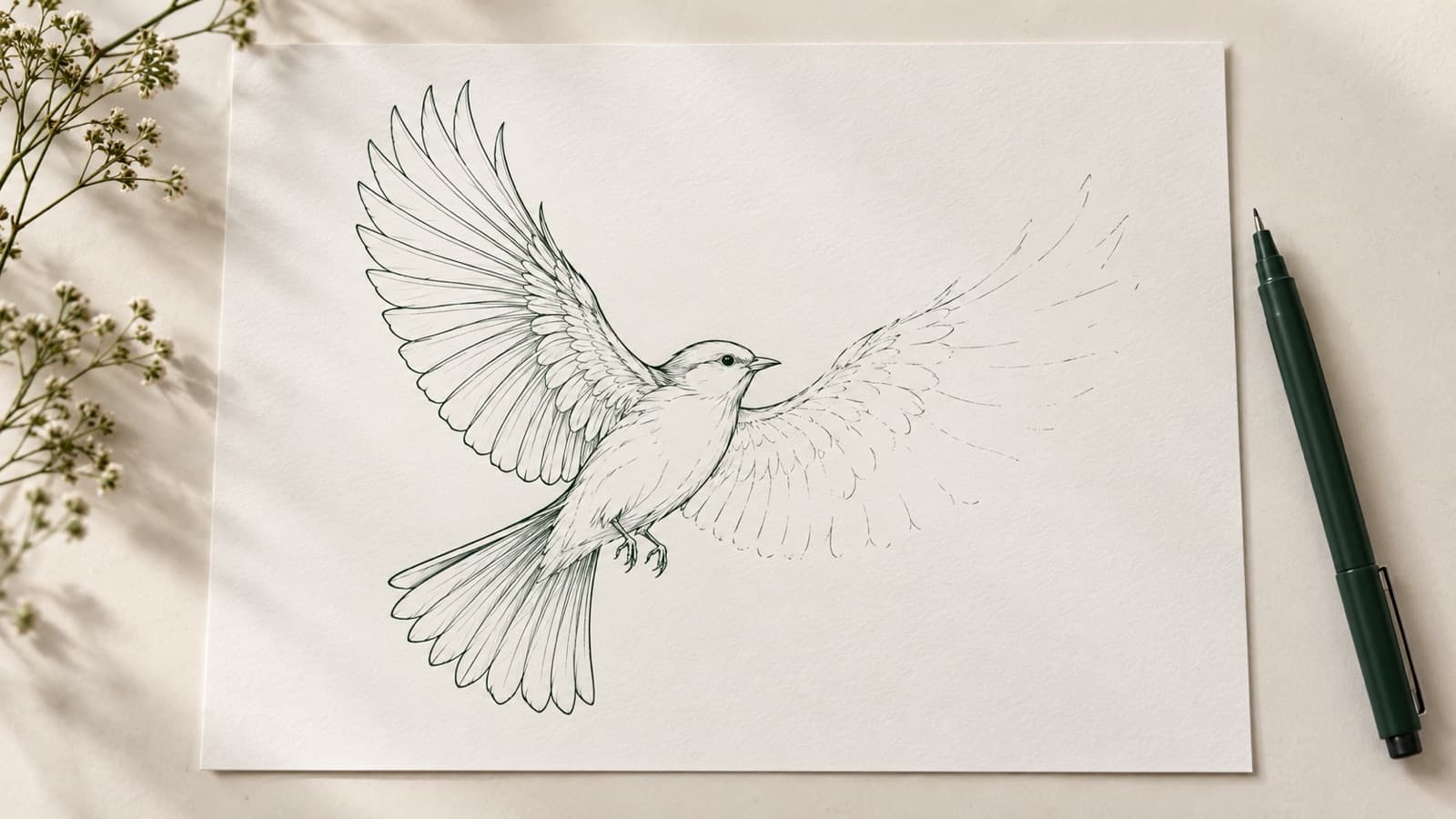
Animated SVG Line Drawings: Make Draw-On Animations
Make an animated SVG line drawing that draws itself on screen. Pick draw on, fade in or AI motion, set duration and order, then export SVG, MP4 or GIF.
A line drawing that draws itself on screen catches the eye in a way a still image does not. The usual way to build one is by hand: open the SVG, find the paths, write CSS, tweak timings. This guide explains how an animated SVG works and how to make one from a LineSVG drawing without writing code.
Quick answer: Generate or open a finished drawing in LineSVG, click Animate in the result toolbar, and pick a style: Draw on, Fade in or AI motion. Set the duration (1–12 seconds), the order and the loop, preview it, then save. Export the result as SVG for the web, or as MP4 or GIF for social posts and email.
 A one-line portrait with the Draw on style: 5 seconds, looping.
What an animated SVG is
An animated SVG is a normal SVG file with the animation written inside it, usually as CSS. There is no video track and no frames. The browser reads the shapes and the animation rules and plays them, which gives you three practical advantages:
- It stays sharp at any size. It is still vector art, so it scales from a small icon to a full-width hero without blur.
- It is small. A line drawing with its animation is often a few kilobytes to a few dozen kilobytes. A video or GIF of the same drawing is usually much larger.
- It plays like an image. Modern browsers run it when the SVG is placed on a page, with no player and no plugin.
The draw-on effect uses a simple trick. Every stroke has a length. You turn the stroke into one long dash with a gap just as long (stroke-dasharray), then shift the dash pattern so only the gap shows (stroke-dashoffset). Animate the offset back to zero and the line appears to be drawn along its path:
path {
  stroke-dasharray: 400;
  stroke-dashoffset: 400;
  animation: draw 4s ease forwards;
}
@keyframes draw {
  to { stroke-dashoffset: 0; }
}
By hand, you would measure each path, give it a delay and get the order right. LineSVG handles that part.
Why editable strokes matter for draw-on animation
The dash trick only works on a stroke: a line with a path and a thickness setting. Many SVGs that look like line art are made of thin filled shapes instead, two edges with color painted between them. A filled shape has no single path to travel along, so it cannot be "drawn"; the best it can do is fade or scale in. We cover the difference in stroke, outline or fill and in why you can't change the line width in your SVG.
This is why the output type matters before you animate. LineSVG's Editable lines output gives you real strokes, with stroke width, color and dashes adjustable after generation. Those strokes draw on cleanly. If a drawing contains some filled shapes (small solid eyes or dots, for example), Draw on still works: the strokes draw along their path and the filled shapes fade in instead.
How to make an animated SVG in LineSVG
- Make the drawing. Type a description in the line art generator, upload a photo to photo to line art, or try one line drawing for continuous-line portraits, which look especially good drawn on. Choose Editable lines as the output type.
- Save any edits first. Animations use the saved drawing. If you changed stroke width, color or dashes, save that version before animating, or the changes will not be included.
- Click Animate. It is in the result toolbar of any completed drawing.
- Pick a style. Draw on, Fade in or AI motion (compared below).
- Set duration, order and loop, and watch the live preview for Draw on and Fade in.
- Save the animated version. Saving costs 10 credits, the same as a generation.
- Export as SVG, MP4 or GIF.
An animated version cannot be animated again. If you want a different style or timing, go back to the source drawing and animate that instead.
 Draw on, top to bottom, 6 seconds, looping.
Three animation styles compared
| Style | What it does | Best for | Preview | Cost |
|---|---|---|---|---|
| Draw on | Each stroke reveals along its path, like a pen drawing it | Line art, one-line portraits, signatures, logo reveals | Free live preview in the browser | 10 credits to save |
| Fade in | Shapes appear one by one | Drawings with filled shapes, icons, softer reveals | Free live preview in the browser | 10 credits to save |
| AI motion | The model reads the drawing and adds motion, such as wheels turning or eyes blinking | Characters, objects with moving parts, playful loops | No free preview (generated remotely) | 10 credits per run |
For AI motion you can type what the motion should do, up to 300 characters ("the cat's tail swishes slowly"), or leave the box empty and let the model choose. Each AI motion run produces a new result.
Here is the same sprig as above with Fade in, so you can compare:
 Fade in, left to right, 4 seconds, looping.
Draw on feels like someone is drawing; Fade in feels like the picture is being assembled.
Settings that make it look good
Duration (1–12 seconds, default 4). Match it to how much drawing there is. A simple icon or signature looks best at 2–3 seconds. A detailed portrait or botanical drawing needs 5–8 seconds, or the strokes rush by too fast to follow. For a website hero, err on the short side; visitors should see the finished drawing quickly.
Order. This decides which strokes come first:
- Left to right reads naturally for wide drawings, text-like marks and landscapes.
- Top to bottom suits tall subjects: plants, standing figures, a face from hairline to chin.
- File order follows the order of the paths in the file (document order). For a one-line drawing, this usually means following the line as it was drawn.
- Long lines first orders strokes by length, so the main shapes appear before the small details.
Try two orders in the preview and keep the one that feels most natural.
Loop. Turn it on for decorative pieces that stay on screen, like a hero illustration or a sidebar graphic. A looping animation pauses briefly on the finished drawing before it restarts, so viewers get time to see the whole picture. Turn loop off for one-time reveals, such as a logo at the top of a page.
Saving again. If you save the same Draw on or Fade in settings again on the same drawing, LineSVG returns the earlier version without charging again. Changing a setting creates a new version.
Where to use animated SVGs
- Website hero sections. A short draw-on illustration adds motion without a heavy video file.
- Logo reveals. A line logo that writes itself in once on page load, with loop off.
- Blog posts, portfolios and product pages. A small animated spot illustration or icon next to a feature.
- Email. Be careful here. Many email clients do not run CSS animation inside SVG, and some do not display SVG at all. For email, export a GIF.
- Social media. Social platforms expect video. Export MP4 for posts and stories.
Export: SVG vs MP4 vs GIF
Animated versions export as SVG, and to MP4 and GIF right in the browser.
- SVG is the best choice for websites. It is sharp at every size, light to load, and plays on its own. Add it like any image or inline it in your page.
- MP4 is for social media, presentations and video editors. MP4 encoding needs a browser that supports it: Chrome, Edge or Safari. In other browsers, export GIF instead.
- GIF works almost everywhere, including email and chat apps. The tradeoff is size and quality: GIFs are larger than the SVG and limited to 256 colors, which is fine for black line art but less ideal for detailed color work.
Frequently asked questions
Can I animate an existing SVG?
Animate works on drawings saved in LineSVG. A .svg file you upload opens in the Edit SVG tab; once you describe a change and the edited version is saved (10 credits), it becomes a LineSVG drawing you can animate. You can also export your artwork as a PNG, JPG or WebP and run it through photo to line art first. For the cleanest draw-on, aim for real strokes (Editable lines); filled shapes will fade in.
Is an animated SVG better than a GIF?
On a website, usually yes. An animated SVG stays sharp at any size and is often much smaller than a GIF of the same drawing. A GIF is the safer choice for email and places that do not play SVG animation, which is why LineSVG exports both.
Does an animated SVG work in all browsers?
CSS animation in SVG runs in all current major browsers, including Chrome, Edge, Firefox and Safari, on desktop and mobile. Email clients are the main exception; use GIF there.
Can I change how the drawing looks before animating it?
Yes. With Editable lines you can adjust stroke width, color and dashes. Save those edits first, because the animation uses the saved drawing.
How much does it cost?
Saving an animated version costs 10 credits, the same as a generation. Draw on and Fade in have a free live preview, and saving the same settings again on the same drawing does not charge twice. AI motion has no free preview and each run costs 10 credits. New accounts get 10 welcome credits, enough for one generation. See the pricing page for plans.
Make your first animated drawing
Start with a drawing that has clear, real strokes. A one line drawing portrait or a simple botanical from the line art generator is a good first try. Click Animate, preview Draw on and Fade in, pick the order that feels natural, and save. Then export SVG for your site and a GIF or MP4 for everywhere else.
Author

Categories
More Posts
Make printable coloring pages with line thickness that fits the age
Make printable coloring pages from a text prompt or drawing, then set the line thickness for toddlers, kids or adults before you print or sell the SVG.
Why your cutter or plotter draws double lines (and how to fix it)
Why does your cutter or plotter draw double lines? Usually the SVG is an outline trace or has duplicate paths. Learn to diagnose it and use single-line files.
Image to SVG: prepare a better source drawing
Image to SVG works best with a clean source. Learn how to photograph, crop and clean a sketch so it traces into real, editable SVG strokes instead of fills.