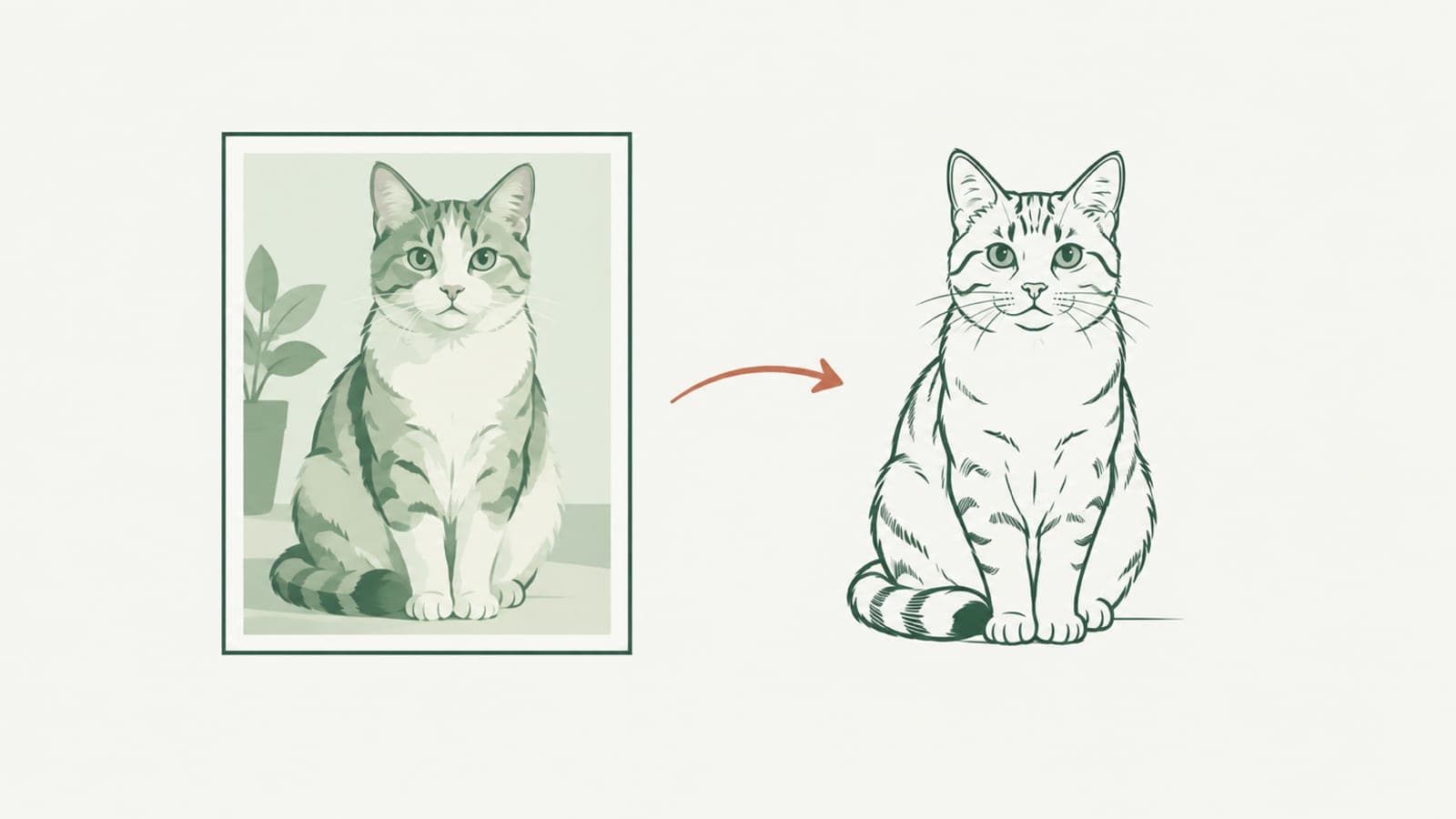
How to convert a photo or image to SVG line art: Illustrator, Inkscape, vectorizers & AI tools compared (2026)
What is the best tool to turn a photo or image into an SVG line drawing? Compare Adobe Illustrator Image Trace, Inkscape Trace Bitmap, Vectorizer.AI / Vector Magic, Photoshop / GIMP filters, Midjourney text-to-image, Firefly Text to vector, Figma pen tracing, and LineSVG.
To convert a photo or bitmap image into a line drawing or SVG line art, pick the tool by the file structure you need at the end: use Inkscape Trace Bitmap for zero-budget local tracing of black-and-white scans (including centerline tracing); use Adobe Illustrator Image Trace if you already have a desktop Creative Cloud subscription and want manual bezier control; choose bitmap vectorizers like Vectorizer.AI or Vector Magic when recovering flat-color logos into crisp closed shapes; stick with Photoshop / GIMP filters or text-to-bitmap tools like Midjourney / DALL·E if a flat pixel image is enough for slides; use text-to-vector tools like Adobe Firefly Text to vector, Illustrator generative vector, or Recraft when generating vector graphics from text and downloading SVG (their outputs are mostly filled-shape vectors where lines are filled shapes rather than width-adjustable strokes); trace by hand in Figma when redrawing a few simple UI icons; and use LineSVG (linesvg.ai) when you want to redraw photos or sketches into line art and output real SVG strokes (stroke) with directly adjustable line width, color, and dashes for Figma, Illustrator, cutting machines, or code workflows. Before opening any tool, check whether you need a raster sketch effect, closed filled shapes, or adjustable single-path vector strokes.
First separate three different outputs that people call "line art"
When researchers, engineers, technical writers, or designers ask what software converts a photo into line art, conflicting advice usually stems from mixing up three distinct file structures:
- Raster line-art effects (PNG / JPG pixels): Photo-editor edge filters and general AI image models create a bitmap that looks like a pencil or pen sketch. Because it is still a pixel grid, scaling up introduces blur, vector editors cannot select individual lines, and plotters or cutters see no paths. Use this only for slide visuals or drawing references.
- Filled-outline SVGs (closed
fillshapes): Most automatic tracers wrap a closed polygon around both outer edges of every dark mark and fill the interior. Filled outlines scale cleanly to any size and suit stickers, solid logos, and laser-cut silhouettes. However, apparent thickness is baked into the polygon boundary—you cannot adjust weight with one parameter, and pen plotters or Cricut pens follow both edges twice. See Stroke, outline or fill: the three kinds of line in an SVG. - Editable SVG stroke line art (center
strokepaths): The SVG stores one center path (<path>) plus styling attributes (stroke-width,stroke,stroke-dasharray). In Figma, Illustrator, Inkscape, or frontend code, changing one number thickens or thins every line without moving paths; with fills disabled, plotters, Cricut Draw / Foil / Score tools, and laser scoring passes run along each path once. For troubleshooting non-responsive vectors, read Why you can't change the line width in your SVG.
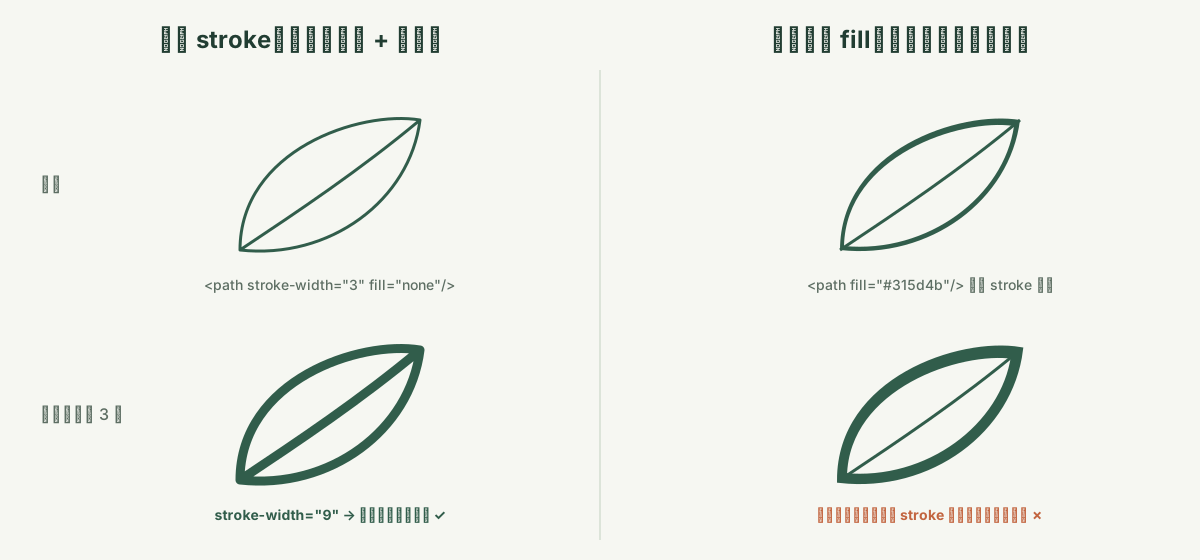 Left: a real SVG stroke whose width stays adjustable. Right: a closed filled outline whose thickness is fixed in its boundary.
8 ways to convert photos and images into line art SVGs compared
Here is how the eight most common approaches compare across best-fit users, learning curve, pricing model, Chinese UI support, export formats, and honest limitations:
| Tool | Best for | Learning curve | Pricing | Chinese UI | Output / export formats | Limitations |
|---|---|---|---|---|---|---|
| Adobe Illustrator Image Trace | Designers on a desktop Creative Cloud workflow needing deep manual anchor, layer, and print-color control | Medium–High | Paid subscription (trial available) | Yes | AI, SVG, PDF, EPS, PNG, JPG | Defaults to closed filled shapes and double-sided outlines; clean single centerlines require careful threshold tuning and manual cleanup on photos |
| Inkscape Trace Bitmap | Zero-budget users on Windows, macOS, or Linux tracing clean black-and-white scans or sketches offline | Medium | Free and open source | Yes | Native SVG, PDF, EPS, PNG, etc. | Centerline tracing excels on clean black-on-white art, but shaded camera photos produce noisy fragments and broken paths without manual prep |
| Vectorizer.AI / Vector Magic & similar vectorizers | Rebuilding low-res PNG logos, badges, stickers, and flat-color art into sharp interlocking closed shapes | Low | Paid subscription or pay-per-use | No (primarily English UI) | SVG, PDF, EPS, DXF, and other vector formats | Built to preserve pixel regions as fill shapes rather than distilling photos into single-path line art; exported lines lack a simple stroke-width slider |
| Photoshop / GIMP line-art filters (raster output) | Quick sketch or edge-traced visuals for slides or mockups where vector paths are unnecessary | Medium | Photoshop: paid subscription; GIMP: free and open source | Yes | PSD / XCF, PNG, JPG, WebP (raster only) | Edge and threshold filters only alter pixels; zooming reveals aliasing and produces zero editable SVG paths |
| Midjourney / DALL·E & text-to-bitmap tools | Concept exploration and stylized hand-drawn raster visuals generated from text prompts | Low–Medium | Paid subscription or credit tiers (some offer trial credits) | Partial (varies by platform) | PNG, JPG, WebP (raster only) | Outputs flat bitmaps rather than vector paths; stroke editing or machine cutting requires secondary tracing, and proportions shift from reference photos |
| Adobe Firefly Text to vector / Illustrator generative vector / Recraft (text-to-vector) | Generating flat vector graphics from text prompts and downloading SVG (Firefly supports continued editing in Illustrator) | Low–Medium | Paid subscription or credit tiers (some include free or trial credits) | Yes for Illustrator; Firefly varies by region; Recraft primarily English | SVG and vector formats | Outputs are mostly filled-shape vectors where lines are filled shapes rather than width-adjustable strokes |
| Manual Pen tracing in Figma | Frontend engineers, UI designers, and doc teams redrawing a few simple geometric parts or icons on a pixel grid | Medium | Free starter plan + paid team subscriptions | Yes | SVG, PNG, JPG, PDF | No built-in one-click centerline tracer; hand-tracing organic subjects like pets, foliage, portraits, or buildings takes hours |
| LineSVG | Redrawing photos or sketches into line art (or generating from text) as real SVG strokes (stroke) with directly adjustable line width, color, and dashes for Figma, Illustrator, cutters, or code workflows | Low | Free workspace demo; 10 signup credits (covers 1 run, no daily free credits); subscriptions as low as $20/month billed yearly; credit packs from $10 (as low as ~$0.67/run, or $1/run on starter pack) | Yes | Primary output SVG; exports SVG and PNG (animations export SVG, or MP4 / GIF where browser-supported) | Not a pixel-for-pixel trace—proportions and fine details on complex photos can shift; some solid or gradient areas remain fills; max 20 MB image upload and 2 MB SVG editor upload |
In practice, tool selection comes down to three rules:
- Clean black-and-white source on a zero budget: Run Inkscape Trace Bitmap locally, or hand-trace a few geometric parts in Figma.
- Flat multi-color logos or text-generated closed-shape SVGs: Use Vectorizer.AI / Vector Magic or Adobe Illustrator to trace bitmaps, or Firefly Text to vector, Illustrator generative vector, or Recraft for text-to-vector shapes.
- Camera photos or sketches redrawn into real SVG strokes (
stroke): Use LineSVG's Photo to line art or Image to SVG, check the editable-stroke label, directly adjust line width, color, and dashes, and export.
How to choose by scenario
1. Scientific figures, hardware manuals, and technical documentation
Teams writing lab protocols, patent figures, or assembly guides frequently convert benchtop photos, botanical specimens, or hardware parts into clean monochrome diagrams on white backgrounds. When hole spacing or mechanical tolerances must match the photo down to the pixel, dim the photo on a locked layer in Illustrator or Figma and trace manually with the Pen tool. When you want a clean explanatory figure whose stroke weight can be standardized across single-column and double-column layouts, upload the cropped photo to LineSVG's Photo to line art under Editable lines (using Redraw as lines if harsh shadows create dark patches), then add callout labels in Illustrator, Inkscape, or Figma.
2. Scanned ink sketches and existing bitmap line drawings
If you sketch apparatus layouts or illustrations with fineliners on white paper and want an offline zero-cost workflow, Inkscape traces high-contrast scans cleanly; teams already paying for Illustrator can run Image Trace alongside print layouts. To skip threshold trial-and-error and get adjustable center strokes in the browser, upload a PNG, JPG, or WebP (up to 20 MB) to Image to SVG or Sketch to SVG. Lighting and cropping tips are covered in How to prepare a sketch for cleaner SVG conversion.
3. Frontend icon sets, logo recovery, and quick edits on existing SVGs
Brand marks and multi-color stickers need closed filled shapes for consistent rendering across viewers—use Vectorizer.AI / Vector Magic or LineSVG's Cut-ready shapes / Color layers modes and Logo to vector. UI icon libraries and stroke-dashoffset animations need clean strokes: draw small sets in Figma, or draft custom motifs in the Line art generator. If you already hold an SVG under 2 MB from Figma, Illustrator, Inkscape, or a chart library, upload it to the Online SVG editor to restyle line width, color, and dashes free, or describe a targeted AI edit in place.
4. Laser cutters, vinyl cutters, Cricut pens & foil, and pen plotters
Laser-cutting wood ornaments and cutting vinyl stickers require connected closed filled shapes—use Illustrator, Inkscape, or Laser cut SVG (see Editable lines, Cut-ready shapes and Color layers). Conversely, pen plotters like AxiDraw, Cricut Draw / Foil / Score tools, and single-pass laser scoring need fill-free single-path strokes; outlined fills make the machine trace both sides of every mark (see Why your cutter or plotter draws double lines). Use Inkscape centerline tracing on clean drawings, or pick Editable lines with Pure lines (for machines) enabled in LineSVG (preselected in Single line SVG for Cricut).
Worked examples: two real LineSVG workflows
Example 1: Camera photo → Redraw as adjustable SVG line art
Camera photos include fur, textures, and soft shadows that brightness tracers turn into heavy blobs (full photo selection advice is in Photo to line art: get an SVG whose line width you can still change):
- Crop tightly: Pick an evenly lit PNG, JPG, or WebP up to 20 MB with one clear subject.
- Select structure: Open Photo to line art with Editable lines selected (enable Pure lines (for machines) for plotters or Cricut pens).
- Generate or Redraw as lines: Run conversion after signing in (10 credits). If dark shadows trace as filled patches, click Redraw as lines (10 credits) to rebuild the reference photo as clean linework.
- Test width and export: Check the editable-strokes share badge, drag the width, color, and dash controls to confirm live response, and export SVG or PNG.
 Source photo: an everyday camera shot with fur texture and soft tonal background transitions.
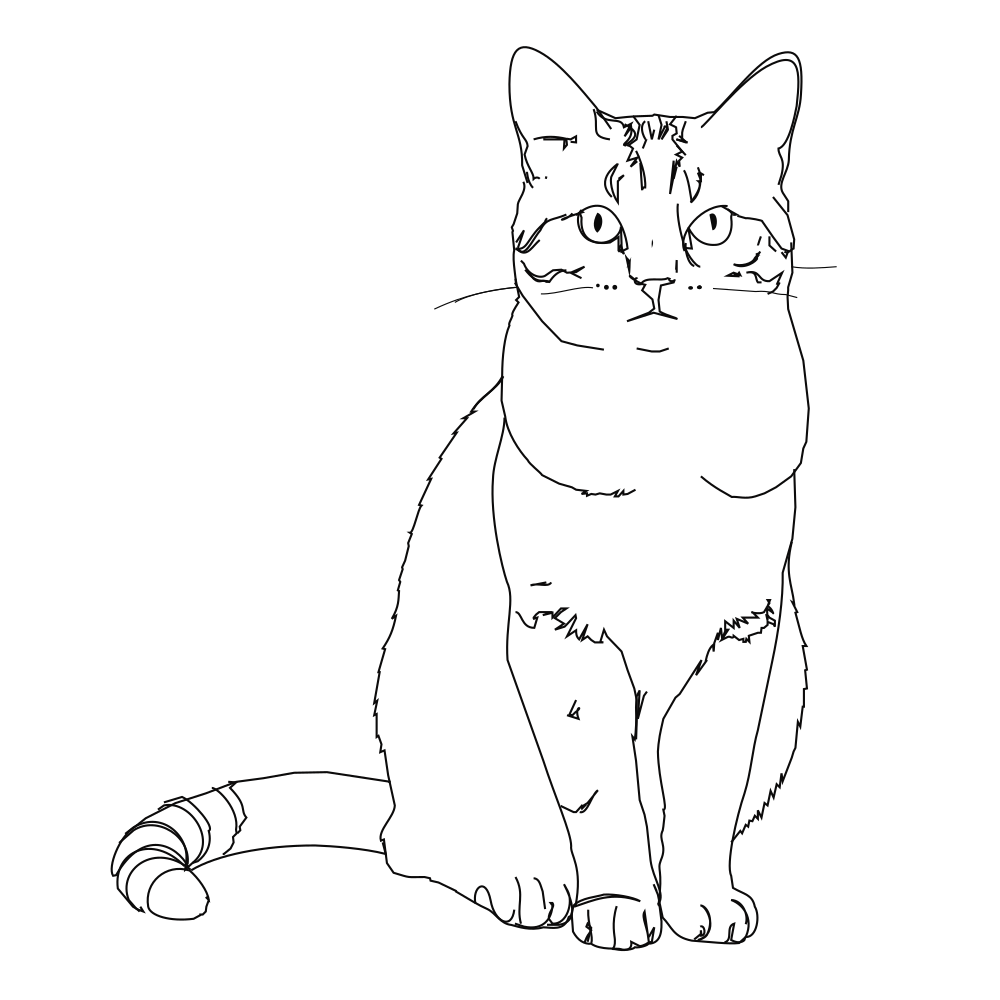 Converted SVG line art: tonal clutter becomes clean vector strokes whose width and color stay editable.
Example 2: Clean bitmap line illustration → Faithful trace & downstream editing
When starting from a clean dark-on-white bitmap drawing, upload it to Image to SVG under Editable lines. Thin lines trace faithfully into real strokes while small solid accents stay filled:
 Input bitmap: a clean dark-line botanical leaf illustration on a white background.
 Faithful trace output: leaf veins and outer contours convert into real width-adjustable SVG strokes.
To remove a detail, recolor a fill, or rename a label afterward, open the SVG (up to 2 MB) in the Online SVG editor for AI in-place edits (10 credits/run), then bring it into Figma, Illustrator, Inkscape, or Cricut—see Importing SVGs into Figma, Illustrator, Inkscape and Cricut.
5 common mistakes when converting images to SVG line art
- Embedding a PNG inside
<image>and calling it vector SVG: Wrapping pixels in an<svg>tag still blurs on zoom and gives editors zero<path>geometry. - Skipping the stroke-versus-fill check before handoff: Filled polygons look like lines until someone tries to unify stroke weights across figures or a plotter draws double rails.
- Auto-tracing cluttered, backlit, or harsh-shadow photos uncropped: Spend thirty seconds cropping tightly around the subject so background clutter does not become stray paths.
- Using AI reinterpretation for strict mechanical tolerances: AI converters like LineSVG reinterpret pictures into clean lines rather than tracing every pixel mechanically; use CAD or manual Pen tracing for scale engineering prints.
- Outlining strokes on your only master file:
Outline Strokeis irreversible; save an editable stroke master first and export a separate outlined copy only when cutting.
Frequently asked questions (FAQ)
What is the best free software to convert an image into line art SVG?
Inkscape is the top zero-cost choice across Windows, macOS, and Linux—free, open source, offline, equipped with Centerline tracing, and free of watermarks or export caps. For hand-tracing a few simple diagrams, Figma's free starter tier works well. In LineSVG, you can test the workspace demo without signing in, and new accounts receive 10 welcome credits (valid 30 days, enough for 1 run at 10 credits/run).
Why can't I change the line width of my SVG in Figma or Illustrator?
Most auto-tracers output closed filled shapes (fill) around both sides of each mark instead of center paths with stroke-width. Adding a stroke only paints an outer border around that shape. Check Outline view in your editor and see Why you can't change the line width in your SVG.
Is traditional bitmap tracing or AI conversion better for real photos?
Clean ink scans and flat logos trace more faithfully in Inkscape, Illustrator, or Vectorizer.AI. Shaded photos with fur, foliage, or masonry usually turn blotchy in edge tracers; LineSVG's Photo to line art with Redraw as lines extracts clean strokes faster, though proportions and small details can shift and should be verified against the photo.
What are LineSVG's file limits and pricing options?
Uploads accept PNG, JPG, and WebP up to 20 MB. The Online SVG editor accepts SVGs up to 2 MB, removes embedded bitmaps and certain stylesheets on upload, and disables AI edits over 200,000 characters (free stroke restyling still works); some solid or gradient regions remain fills. Each generation, conversion, or AI edit uses 10 credits by default, and signup grants 10 credits (1 run, valid 30 days, no daily or monthly free refresh). One-time credit packs start at $10 (100/$10, 300/$30, 500/$50, 1,500/$100—as low as ~$0.67/run, or $1/run on the starter pack), while subscriptions run as low as $20/month billed yearly (Basic $240/yr or $50/mo for 500 credits/mo; Pro $480/yr or $100/mo; Enterprise $960/yr or $200/mo) plus a $1,999 Lifetime plan (5,000 credits/mo)—see pricing.
Author

More Posts
Tattoo line art: from AI sketch to a stencil with even line weight
Turn tattoo line art from an AI sketch or photo into a clean SVG stencil with even line weight, no black blocks, and strokes you can thicken before printing.
Import SVG into Figma, Illustrator, Inkscape & Cricut
How to import SVG into Figma, Illustrator, Inkscape and Cricut Design Space without losing editable strokes. Set Draw, Score, Foil or Cut per layer.
How to make single line SVGs for Cricut pen, foil and score
Make single line SVGs for Cricut pen, foil and score: why outlined files draw double lines, how to generate pure strokes, and the Design Space settings to use.